
Overview
This article outlines the procedure for configuring the spam filter to bypass scanning for specific email senders. Whitelisting a sender ensures that messages from designated addresses are delivered directly without being flagged or quarantined by the protection system.
Prerequisites
- Administrative access to the Warden control panel.
- The exact email address of the sender you intend to whitelist.
Procedure: Whitelisting a Sender
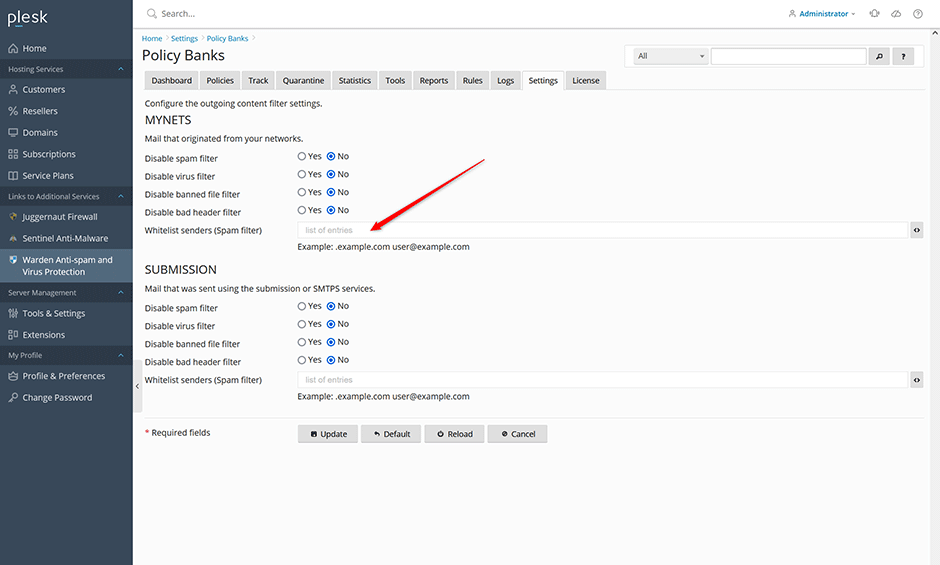
- Navigate to Warden -> Settings -> Policy Banks.
- Select the appropriate policy bank based on the email source:
- MYNETS: Use this policy for emails generated locally by the server (e.g., PHP-based scripts).
- SUBMISSION: Use this policy for emails sent via a desktop client using Submission port 587 or SMTPS port 465.
- Enter the target email address in the Whitelist senders (Spam filter) input field.
- Click Update to apply and save your configuration changes.
Troubleshooting
- Emails continue to be flagged as spam: Verify that the correct policy bank was selected. Server-generated messages require the MYNETS policy, while client-submitted messages require the SUBMISSION policy.
