
Overview
This guide outlines the procedure for restricting SSH access to specific countries using the Juggernaut Firewall. By leveraging geolocation filtering, you can permit port 22 traffic exclusively from designated regions while blocking all other global sources.
Prerequisites
- Critical: Ensure your current IP address is whitelisted in the firewall before applying restrictions to prevent accidental lockout. Refer to: Whitelisting an IP Address or Hostname.
- A valid MaxMind license key. If you do not have one, obtain a free key via: Free MaxMind License Key Registration.
Configuration Steps
- Navigate to Juggernaut Firewall -> Settings -> Geolocation Settings and enter your MaxMind license key.
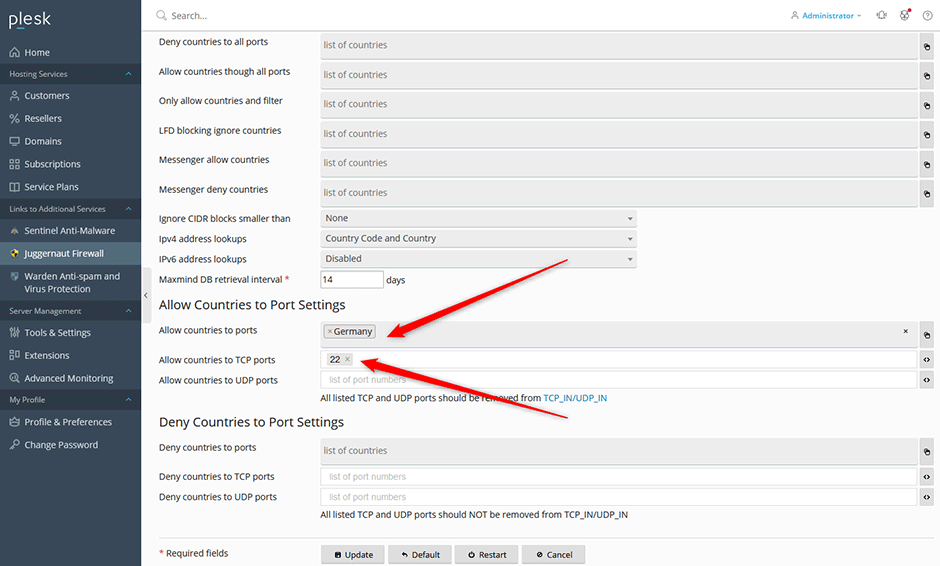
- Proceed to Juggernaut Firewall -> Settings -> Login Failure Daemon -> Country Settings.
- In the Allow countries to ports field, select or enter the target country/countries.
- Add port 22 to the Allow countries to TCP ports field.
- Click Update to apply the geolocation rules.
- Click Restart to reload the firewall and login failure daemon services.
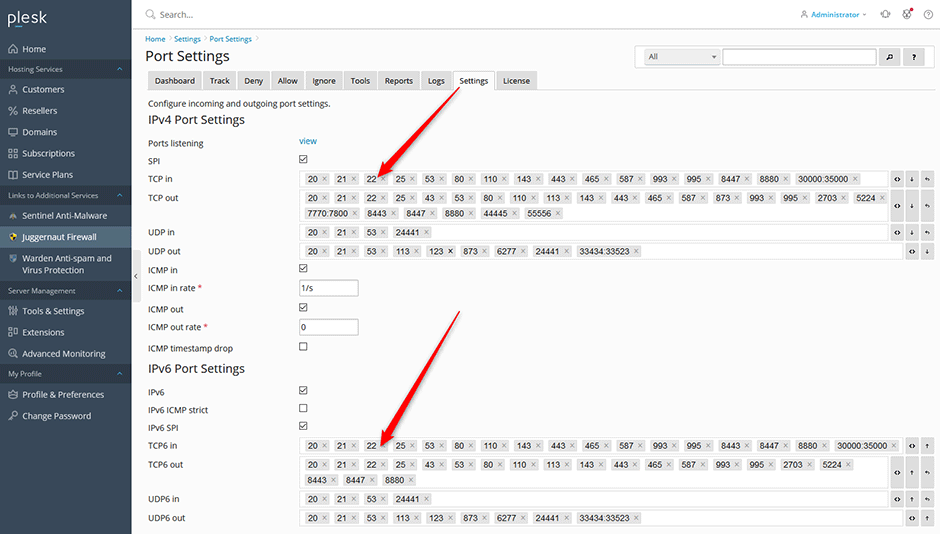
- Navigate to Juggernaut Firewall -> Settings -> Firewall -> Port Settings.
- Remove port 22 from both the TCP in and TCP6 in fields to block unrestricted global access.
- Click Update to save the port configuration.
- Click Restart to apply the final firewall rules.
Troubleshooting & Common Issues
- Locked Out of SSH: If you lose connectivity, verify that your IP address remains whitelisted. Use the provider's rescue console or out-of-band management interface to restore access.
- Geolocation Mismatch: Ensure the MaxMind database is up to date. Incorrect country routing may occur if your ISP uses shared or misrouted IP blocks.
- Rule Conflicts: Confirm that no other firewall rules explicitly allow port 22 globally, as they may override geolocation restrictions.
