
Overview
Warden utilizes network-based spam detection tests, including Razor, Pyzor, and DCC, to enhance email filtering capabilities. For these services to function correctly and maintain optimal spam detection rates, specific firewall ports must be accessible. This article outlines the required port configurations for various firewall environments.
Prerequisites
- Administrative access to your server's firewall configuration interface.
- Identification of your active firewall solution (Juggernaut, Plesk, or third-party).
Juggernaut Firewall
If Juggernaut Firewall is installed and active, no manual configuration is required. The necessary ports for Warden's network tests are automatically permitted by default.
Plesk Firewall
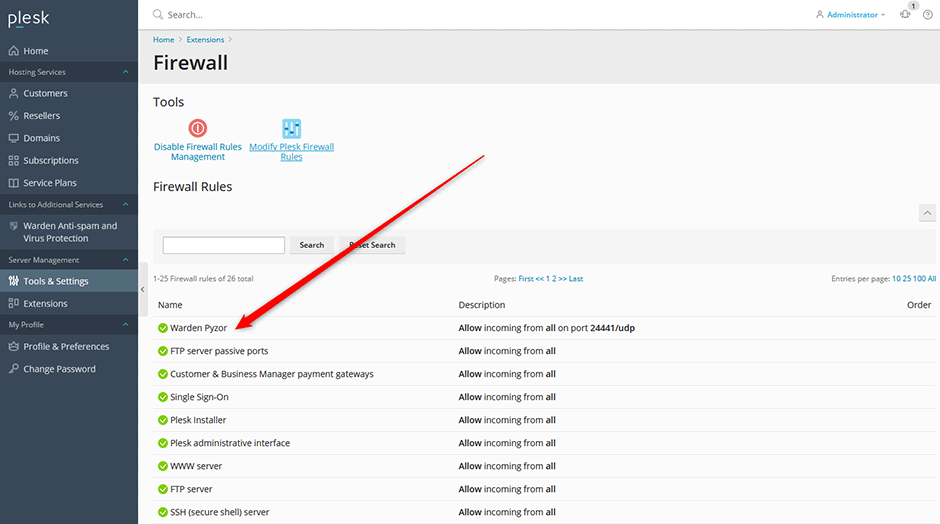
When using the Plesk firewall, port rules are configured automatically upon installation or update of Warden. To verify these settings:
- Navigate to Tools & Settings.
- Select Firewall.
- Locate the rules prefixed with Warden in the active rules list.
External or Third-Party Firewalls
If you are utilizing an external firewall or a third-party extension (such as Imunify360), you must manually configure the following ports to ensure Warden operates correctly:
- Razor: Port 2703 TCP OUT
- Pyzor: Port 24441 UDP IN / OUT
- DCC: Port 6277 UDP OUT
Troubleshooting
If spam detection performance is degraded or network-based tests fail to initialize, verify the following:
- Confirm that your firewall solution matches one of the configurations outlined above.
- Ensure that no additional security modules (e.g., host-level firewalls) are blocking the specified ports.
- Review Amavis logs for connection timeouts or blocked port errors related to Razor, Pyzor, or DCC services.
