
Overview
This article provides instructions for checking, applying, and scheduling application updates using both the web interface and the command line interface (CLI).
Prerequisites
Note: The updated product updater is available in recent extension builds. If the update option is not visible under Settings -> Panel Application -> Application update, you must first upgrade the extension via the command line. Refer to Installing or Upgrading the Extension for detailed instructions.
Managing Updates via the Web Interface
To check for and apply updates through the control panel:
- Navigate to Settings -> Panel Application -> Application update.
- Review available updates and initiate the installation process.
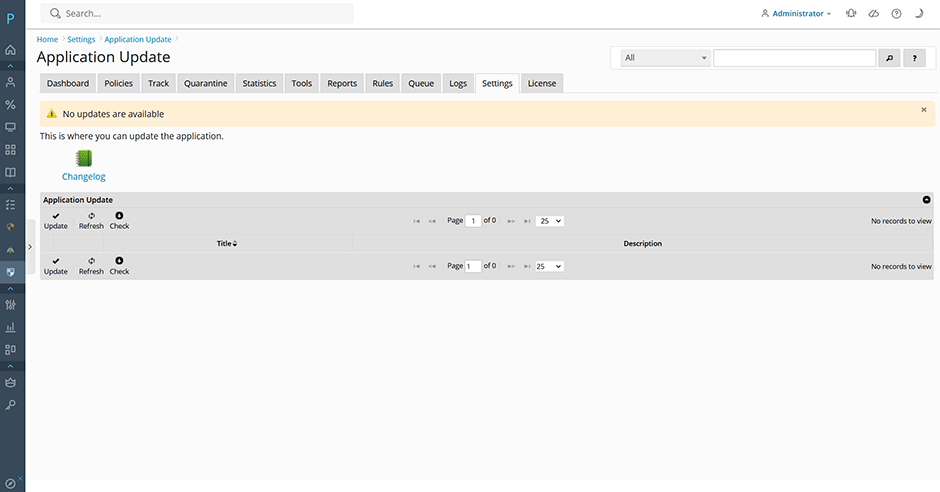
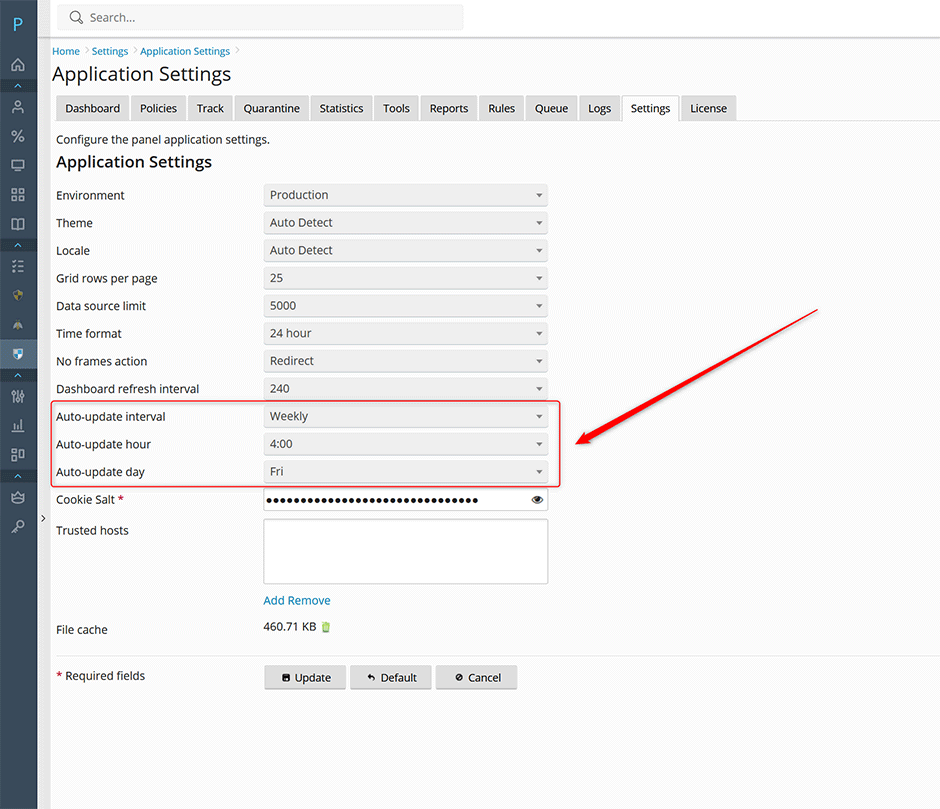
To configure automatic update schedules:
- Navigate to Settings -> Panel Application -> Application Settings.
- Adjust the following parameters as needed:
- Auto-update interval
- Auto-update hour
- Auto-update day
Managing Updates via Command Line Interface (CLI)
Administrators can also manage updates directly from the terminal. Execute the following commands based on your installed product:
Warden Anti-spam and Virus Protection
// check for updates
warden --task=application:update --oper=check

// update the application
warden --task=application:update --oper=update

// disable automatic updates
warden --task=application:application --auto_update_interval=disabled

// check for and apply updates every week on Sunday at 2:00am
warden --task=application:application --auto_update_interval=weekly --auto_update_day_of_week=0 --auto_update_hour=2
Juggernaut Firewall
// check for updates
juggernaut --task=application:update --oper=check

// update the application
juggernaut --task=application:update --oper=update

// disable automatic updates
juggernaut --task=application:application --auto_update_interval=disabled

// check for and apply updates every week on Sunday at 2:00am
juggernaut --task=application:application --auto_update_interval=weekly --auto_update_day_of_week=0 --auto_update_hour=2
Sentinel Anti-malware
// check for updates
sentinel --task=application:update --oper=check

// update the application
sentinel --task=application:update --oper=update

// disable automatic updates
sentinel --task=application:application --auto_update_interval=disabled

// check for and apply updates every week on Sunday at 2:00am
sentinel --task=application:application --auto_update_interval=weekly --auto_update_day_of_week=0 --auto_update_hour=2
Troubleshooting & Common Issues
- Update option missing in UI: Ensure the extension is updated to the latest version via CLI before accessing the web interface update settings.
- Scheduled updates not running: Verify that the system clock is synchronized and that the configured Auto-update hour and Auto-update day values match your intended schedule.
