
Overview
Postscreen is a lightweight mail server defense mechanism designed to block connections from spam bots and compromised hosts, which account for approximately 90% of unsolicited email traffic. It operates as a single process to minimize resource consumption while providing robust filtering before the main SMTP service processes connections. For additional technical details, refer to the official Postscreen documentation.
Prerequisites & Important Notes
- Port Allocation: When Postscreen is enabled, port 25 is reserved exclusively for server-to-server mail relay. End users must submit outgoing mail via port 587 (TLS) or 465 (SSL).
- Automatic Submission Port Activation: Enabling Postscreen automatically activates the submission port (587) if it is not already configured.
- Application Compatibility: Applications utilizing the PHP
mail()function orsendmailare unaffected by this change and will continue to operate normally.
Enabling and Configuring Postscreen
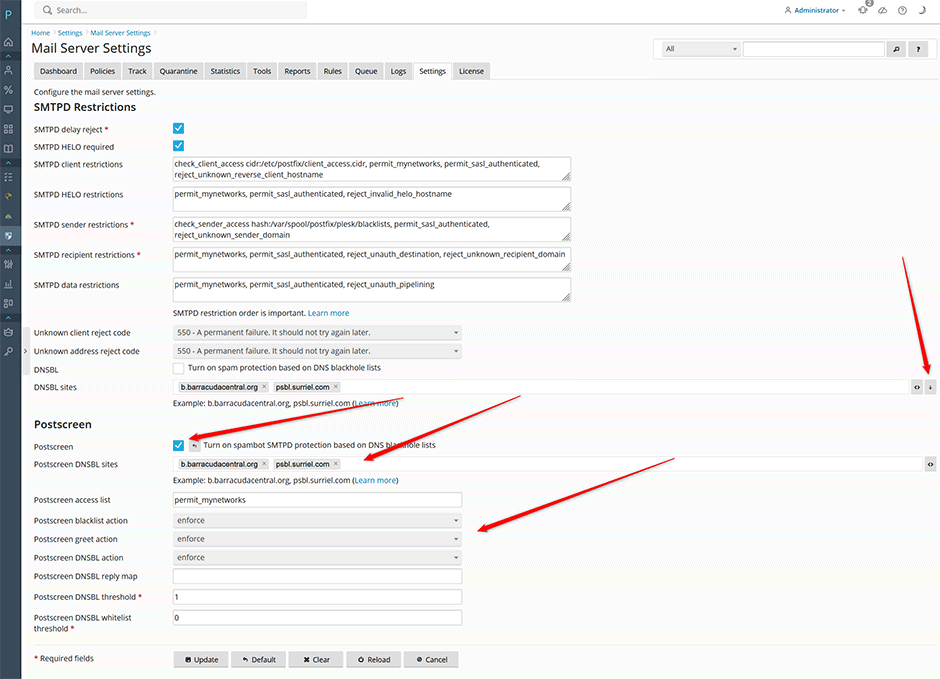
- Navigate to Warden > Settings > Mail Server Settings.
- Check the Postscreen option to enable the service.
- Configure DNS-based Blackhole Lists (DNSBLs):
- If you previously configured standard DNSBLs, click the down arrow next to DNSBL sites to migrate them to Postscreen DNSBL sites.
- Alternatively, manually add recommended DNSBLs to the Postscreen DNSBL sites field. Refer to the recommended DNSBL list for guidance.
- Note: Keep the standard DNSBL option unchecked when using Postscreen to prevent duplicate checks at both the Postscreen and SMTP levels. All entries in Postscreen DNSBL sites are evaluated simultaneously; order does not affect performance.
- Set the following action parameters to enforce:
- Postscreen blacklist action
- Postscreen greet action
- Postscreen DNSBL action
- Click the Update button to apply the configuration changes.
Advanced Configuration: DNSBL Weighting
Postscreen supports positive and negative weight assignments for DNSBLs, functioning similarly to SpamAssassin scoring mechanisms. This allows administrators to fine-tune blocking thresholds based on list reliability.
Example 1: Strict DNSBL Configuration (Recommended)
To mitigate false positives from strict blacklists, assign lower weights so that multiple matches are required before triggering a block. Set the Postscreen DNSBL threshold to 3. Configure the following weights:
- b.barracudacentral.org: 3
- psbl.surriel.com: 3
- bl.spamcop.net: 2
- spam.spamrats.com: 2
- bl.mailspike.net: 2
Connections scoring equal to or greater than the threshold of 3 will be rejected.
Postscreen DNSBL threshhold: 3
Postscreen DNSBL sites:
b.barracudacentral.org=127.0.0.[2..11]*3, psbl.surriel.com*3, bl.spamcop.net*2, spam.spamrats.com*2, bl.mailspike.net*2Example 2: Strict DNSBLs with Whitelisting (Use with Caution)
This configuration incorporates whitelists (swl.spamhaus.org and list.dnswl.org) to reduce false positives. Note: Do not use swl.spamhaus.org if relying on free public DNS resolvers. Set the Postscreen DNSBL threshold to 3. Configure weights as follows:
- b.barracudacentral.org: 3
- psbl.surriel.com: 3
- bl.spamcop.net: 2
- spam.spamrats.com: 2
- swl.spamhaus.org: -4
- list.dnswl.org: -2, -4, or -6 (based on response code)
Connections scoring equal to or greater than the threshold of 3 will be rejected. Scores below 0 (the default postscreen_dnsbl_allowlist/whitelist_threshold) automatically whitelist the client.
Postscreen DNSBL threshhold: 3
Postscreen DNSBL sites:
b.barracudacentral.org=127.0.0.[2..11]*3, psbl.surriel.com*3, bl.spamcop.net*2, spam.spamrats.com*2, swl.spamhaus.org*-4, list.dnswl.org=127.[0..255].[0..255].0*-2, list.dnswl.org=127.[0..255].[0..255].1*-4, list.dnswl.org=127.[0..255].[0..255].[2..3]*-6Postscreen Access Control
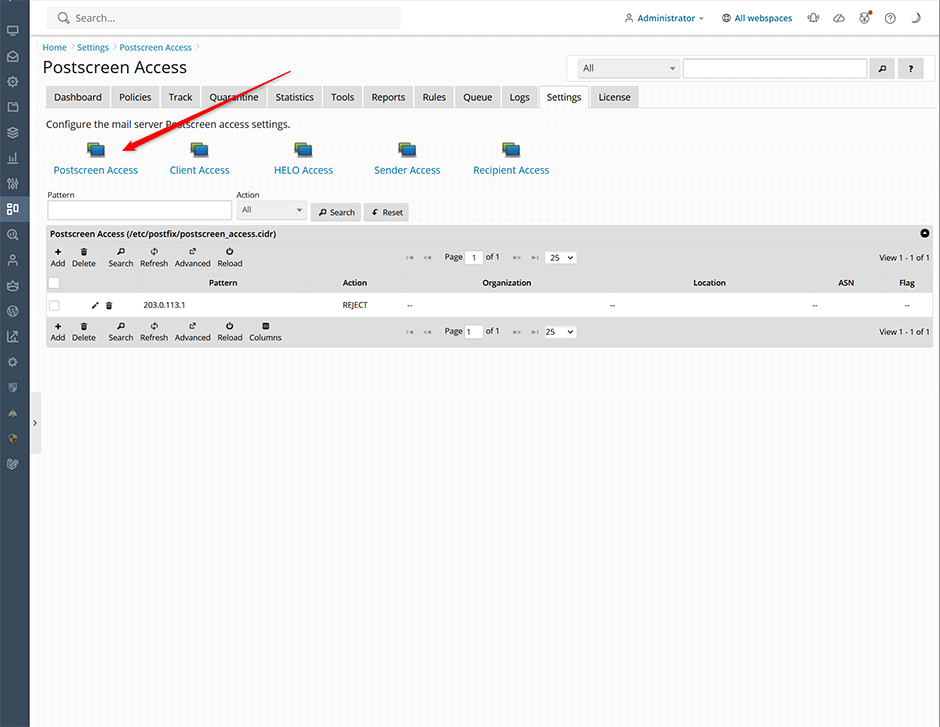
Administrators can manage IP address and CIDR allowlists (whitelists) and blocklists (blacklists) directly through the interface:
- Navigate to Warden > Settings > Mail Server Settings > Mail Server Access > Postscreen Access.
- Add or remove entries as needed. The interface supports both allowlisting and blocklisting for individual IP addresses and CIDR ranges.
Viewing Postscreen Logs
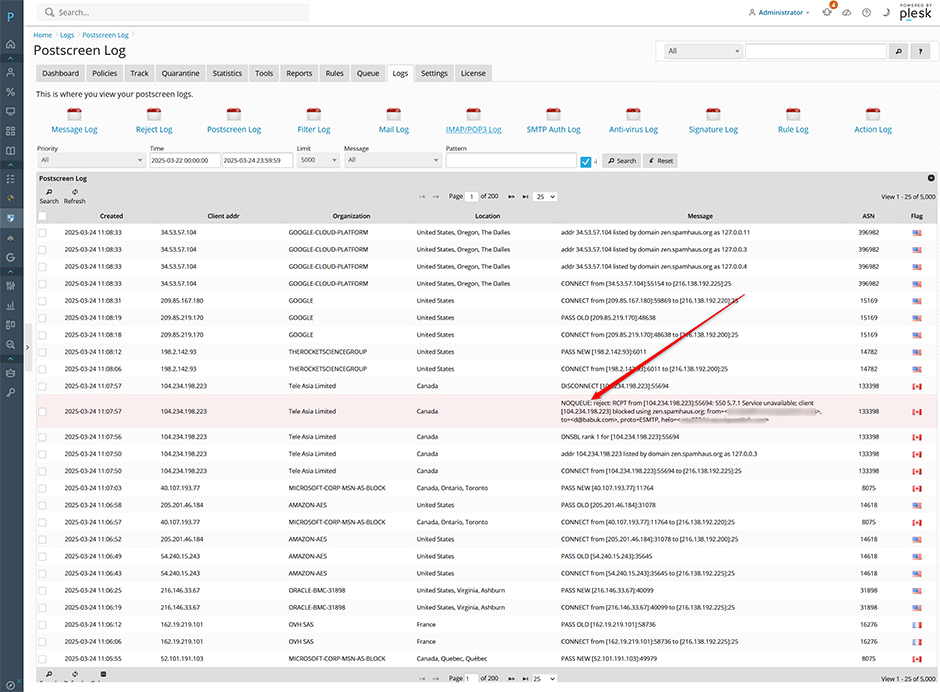
Monitor filtering activity and blocked connections via the logging interface:
- Navigate to Warden > Logs > Postscreen Log.
- Review entries for blocked mail clients. Blocked attempts are highlighted in red and prefixed with the NOQUEUE identifier.
Command Line Interface Management
Postscreen can be enabled and managed via the Warden CLI. Use the mailserver:mailserver task for core configuration and mailserver:access for IP/CIDR management.
// enable Postscreen and set the Postscreen DNSBL sites
warden --task=mailserver:mailserver --postscreen=1 --postscreen_dnsbl_sites='b.barracudacentral.org,psbl.surriel.com'  --reload=yes

// reject mail from the 214.112.234.0/24 network in Postscreen
warden --task=mailserver:access --oper=postscreen_add --pattern='214.112.234.0/24' --action=REJECT --reload=yes

// remove the 214.112.234.0/24 network
warden --task=mailserver:access --oper=postscreen_del --pattern='214.112.234.0/24' --reload=yes

// whitelist an IP address that is blocked on one of the Postscreen DNSBL sites
warden --task=mailserver:access --oper=postscreen_add --pattern='214.112.234.1' --action=PERMIT --reload=yes

// remove a whitelisted IP address from Postscreen
warden --task=mailserver:access --oper=postscreen_del --pattern='214.112.234.1' --reload=yes
Troubleshooting & Common Issues
- Duplicate DNSBL Checks: Ensure the standard DNSBL option remains unchecked when Postscreen is active. Enabling both causes redundant lookups and may impact mail delivery performance.
- Outbound Mail Failures: Verify that all end-user email clients are configured to submit mail via port 587 (TLS) or 465 (SSL). Port 25 is restricted to server-to-server relay when Postscreen is enabled.
- False Positives: If legitimate senders are blocked, adjust DNSBL weights as demonstrated in the Advanced Configuration section, or add the sender's IP/CIDR to the Postscreen Access allowlist using the UI or CLI.
- Log Verification: Always check the Postscreen Log for NOQUEUE entries when investigating delivery issues. This confirms whether Postscreen intercepted the connection before it reached the main SMTP daemon.
