
Overview
Amavis manages file attachment filtering through banned filename rules, controlled by the $banned_filename_re configuration option. Administrators can configure these rules directly in Amavis configuration files or manage them centrally through the Warden interface. This guide outlines how to locate default configurations, add custom rules via the Warden UI, assign rules to hierarchical policies, and apply configurations using the command line.
Configuration File Locations
The default banned filename rules are defined in the Amavis configuration file. The location varies by operating system:
- AlmaLinux/CloudLinux/RHEL: /etc/amavisd/amavisd.conf
- Debian/Ubuntu: /etc/amavis/conf.d/20-debian_defaults
Adding Custom Banned Rules
To override default rules or add custom filters, use the Warden administrative interface:
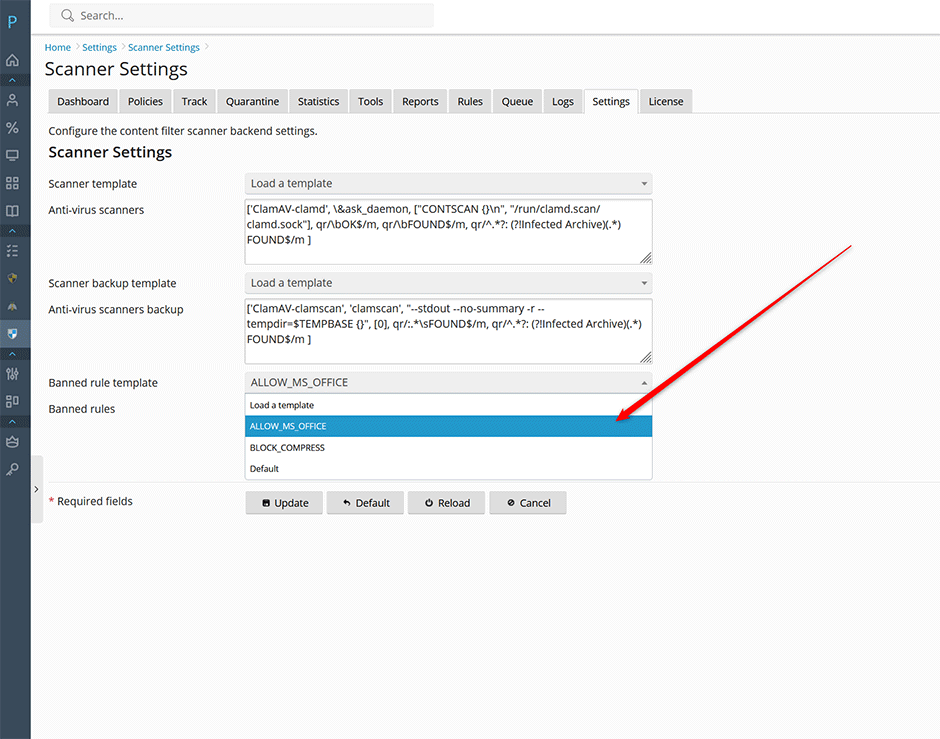
- Navigate to Warden > Settings > Content Filter Settings > Scanner Settings.
- Select the appropriate Banned rule template to populate example entries in the Banned rules field.
- Click Update to save the configuration. Custom rules will be available for assignment at the server, domain, and mailbox policy levels.
Assigning Banned Rules to Policies
After creating custom rules, assign them to specific policies. Content filter policies operate hierarchically; rules applied at a parent level (e.g., server-wide) automatically inherit to child levels unless explicitly overridden.
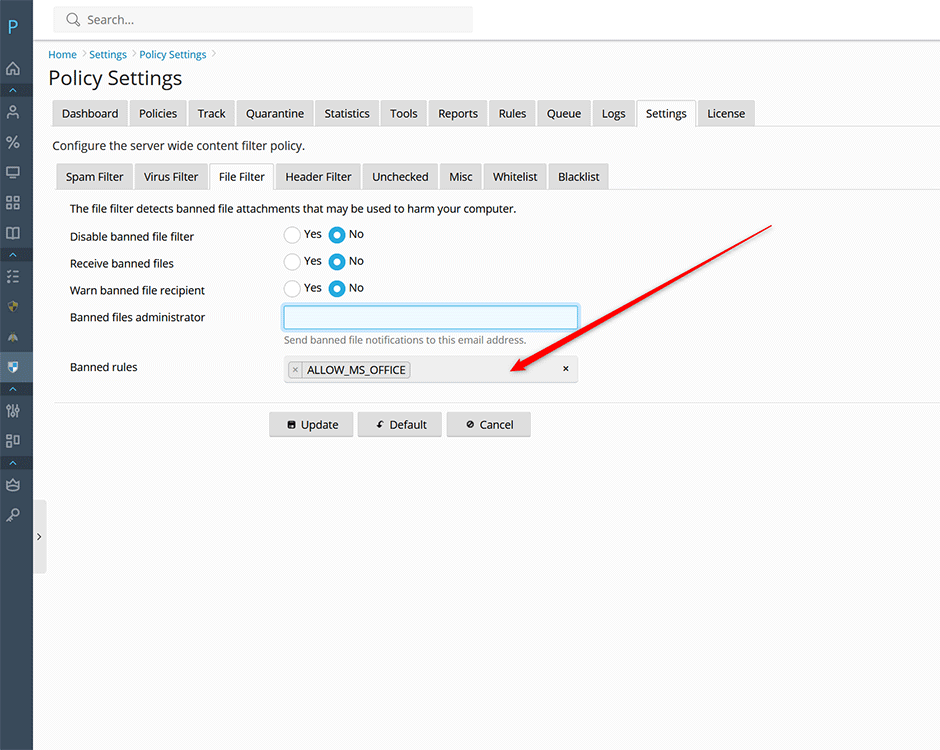
- Navigate to the desired policy scope: Settings > Policy Settings > File Filter.
- Select the target policy (Server-wide, Domain, or Mailbox).
- In the Banned rules field, assign the desired rule names.
Rule Syntax and Examples
When defining banned rules, adhere to the following syntax requirements:
- Rule names must contain only letters, numbers, and underscores.
- Multiple rules are comma-separated. The combined length of all rule names must not exceed 64 characters due to Amavis database constraints.
- A value of
0allows the file type; a value of1blocks it.
Allow Microsoft Office Documents:
'ALLOW_MS_OFFICE' => new_RE([qr'.\.(doc|docx|xls|xlsx|ppt|pptx)$'i => 0])Block Compressed Archives:
'BLOCK_COMPRESS' => new_RE([qr'.\.(zip|7z|gz|bz2|tar|rar)$'i => 1])Default Global Rules:
The default rule references the global Amavis configuration and should be retained to maintain baseline security policies.
'DEFAULT' => $banned_filename_reCombining Multiple Rules
To apply multiple rules simultaneously, separate them with commas. Ensure the DEFAULT rule is included to preserve baseline filtering.
'ALLOW_MS_OFFICE' => new_RE([qr'.\.(doc|docx|xls|xlsx|ppt|pptx)$'i => 0]), 'BLOCK_COMPRESS' => new_RE([qr'.\.(zip|7z|gz|bz2|tar|rar)$'i => 1]), 'DEFAULT' => $banned_filename_reCommand Line Configuration
Banned rules can also be configured via the Warden CLI. Note that single quotes within rule definitions must be properly escaped for shell compatibility.
Add a custom rule:
// add the rule ALLOW_MS_OFFICE rule
warden --task=contentfilter:scanner --banned_rules=''\''ALLOW_MS_OFFICE'\'' => new_RE([qr'\''.\.(doc|docx|xls|xlsx|ppt|pptx)$'\''i => 0]), '\''DEFAULT'\'' => $banned_filename_re
Apply rule to server-wide policy:
// enable it for the server wide policy
warden --task=contentfilter:policy --banned_rulenames=ALLOW_MS_OFFICE --reload=yes
Troubleshooting and Common Issues
- Rule Name Length Exceeded: If rule application fails, verify that the combined length of all comma-separated rule names does not exceed 64 characters.
- Policy Inheritance Conflicts: Child policies (domain/mailbox) override parent (server-wide) settings. Ensure rules are explicitly defined at the intended scope level.
- CLI Quote Escaping Errors: Shell parsing errors typically result from improperly escaped single quotes. Use the exact escaping syntax provided in the CLI examples.
- Missing Default Rules: Removing the 'DEFAULT' => $banned_filename_re entry may disable baseline Amavis filtering. Always retain this entry when adding custom rules.
