
Overview
This article provides step-by-step instructions for disabling real-time learning and configuring scheduled nightly training within Warden. Procedures are available for both the web interface and the Command Line Interface (CLI).
Disable Real-Time Learning
To disable real-time learning via the web interface, follow these steps:
- Navigate to Warden > Settings > Learning Settings > Sieve learning.
- Uncheck the Use IMAP sieve learning option.
- Click Save to apply the changes.
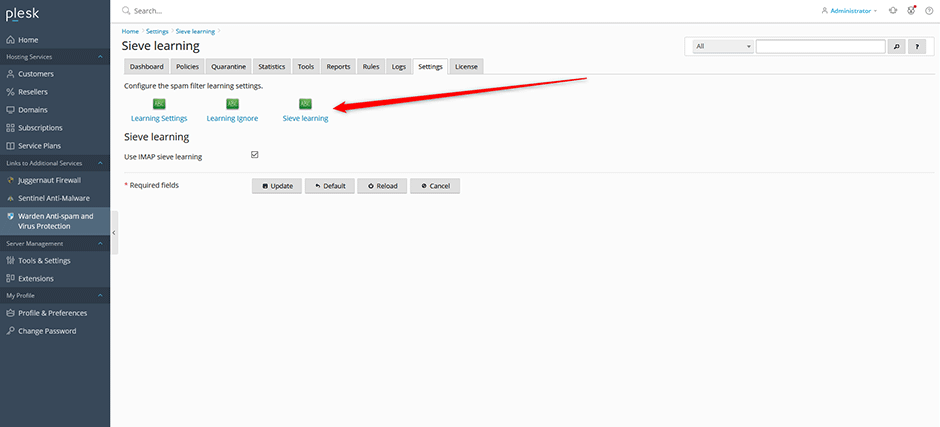
You can also disable real-time learning using the CLI:
// turn off the real-time learning
warden --task=antispam:sievelearning --use_sieve_learning=0 --reload=yes
Enable Scheduled Training
Once real-time learning is disabled, configure scheduled nightly training using the following steps:
- Navigate to Warden > Settings > Training Settings.
- Configure the schedule for nightly training according to your operational requirements.
- Save the configuration.
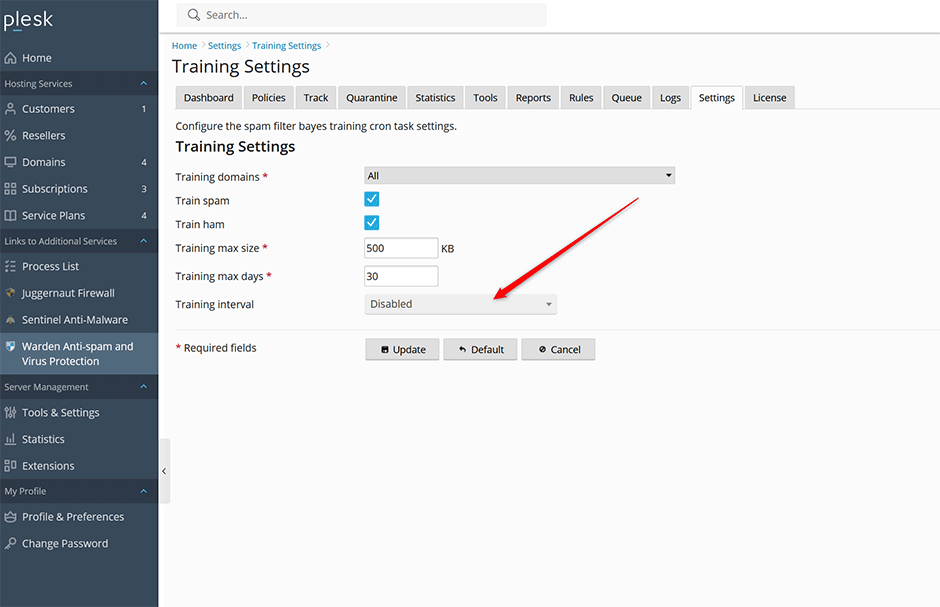
Alternatively, you can configure daily training at 3:00 AM via the CLI:
// set the training to daily at 3:00 AM
warden --task=antispam:training --training_interval=daily --training_hour=3
Troubleshooting
- If configuration changes do not apply immediately, verify that all settings have been saved and reload the service if prompted.
- Ensure CLI commands are executed with appropriate administrative privileges to prevent permission errors.
- Confirm that the scheduled training window aligns with system maintenance periods to minimize performance impact during peak usage hours.
