
Overview
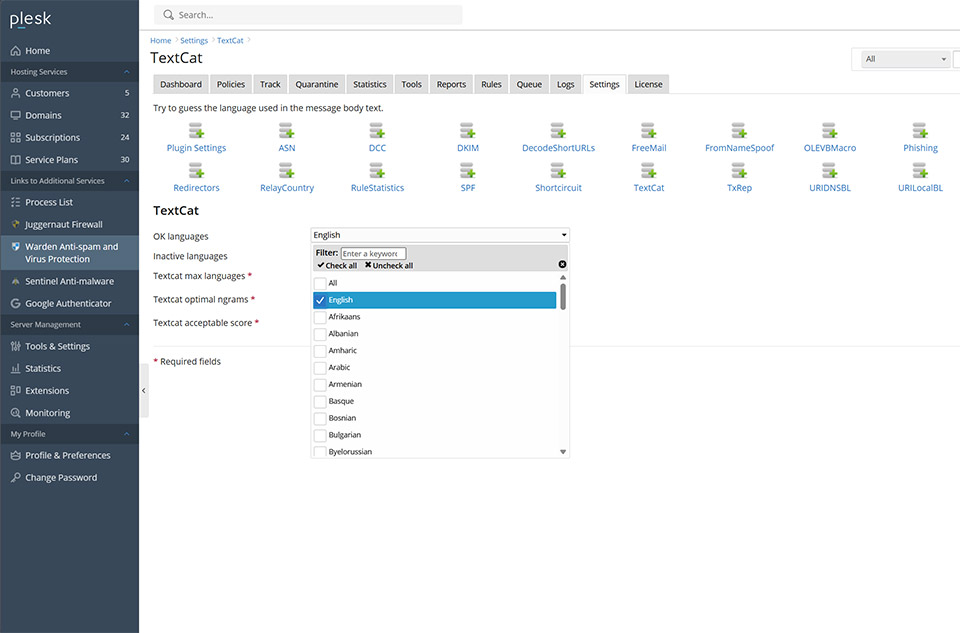
This procedure configures the TextCat plugin to allow only specified languages. Messages that do not match the allowed languages are evaluated by the UNWANTED_LANGUAGE_BODY rule.
Configuring Allowed Languages
- Go to Warden > Settings > Plugin Settings > TextCat.
- Under OK languages, uncheck All, then select the languages you want to allow.
- Press Update to save the changes.
Rule Scoring
After this configuration, messages that are not in the OK languages list have the UNWANTED_LANGUAGE_BODY rule applied. By default, UNWANTED_LANGUAGE_BODY has a score of 2.8. To adjust the default score for the rule, go to Rules > Rule Scores.
Common Issues
- If allowed-language filtering is not working, confirm that All is unchecked under OK languages and that Update was pressed after selecting the permitted languages.
- If the score assigned to messages is not expected, verify the UNWANTED_LANGUAGE_BODY score under Rules > Rule Scores.
