
Overview
Temporarily disabling the firewall allows administrators to isolate network-related issues by determining whether traffic restrictions are causing service interruptions or connectivity failures. This procedure should be used strictly for diagnostic purposes.
Prerequisites
- Administrative access to the Plesk control panel, or root/sudo privileges on the server command line.
- Awareness that disabling the firewall temporarily exposes the server to unfiltered network traffic.
Disable or Enable the Firewall via Plesk Interface
To manage the firewall and login failure daemon through the web interface, follow these steps:
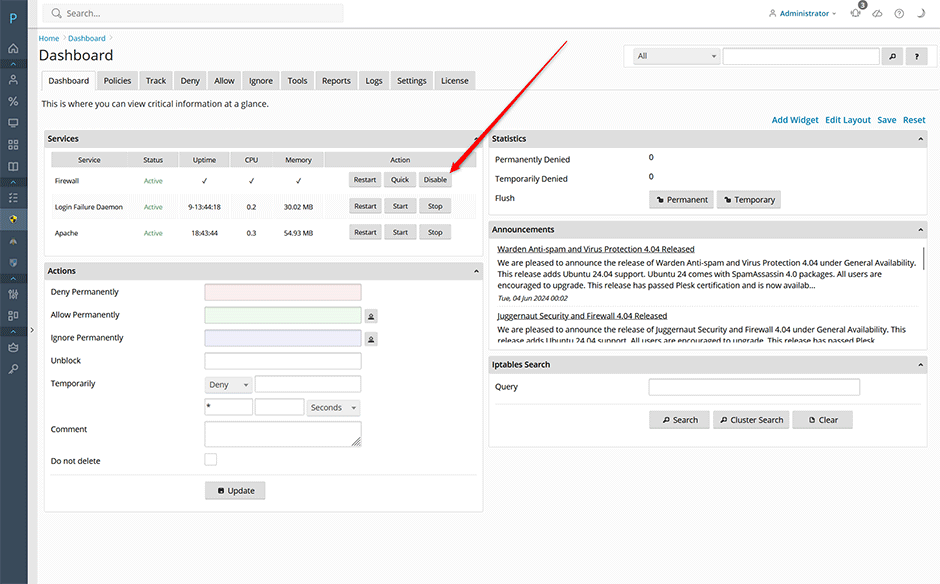
- Navigate to the Juggernaut Firewall services dashboard.
- To disable the service, click the Disable button next to the firewall service entry.
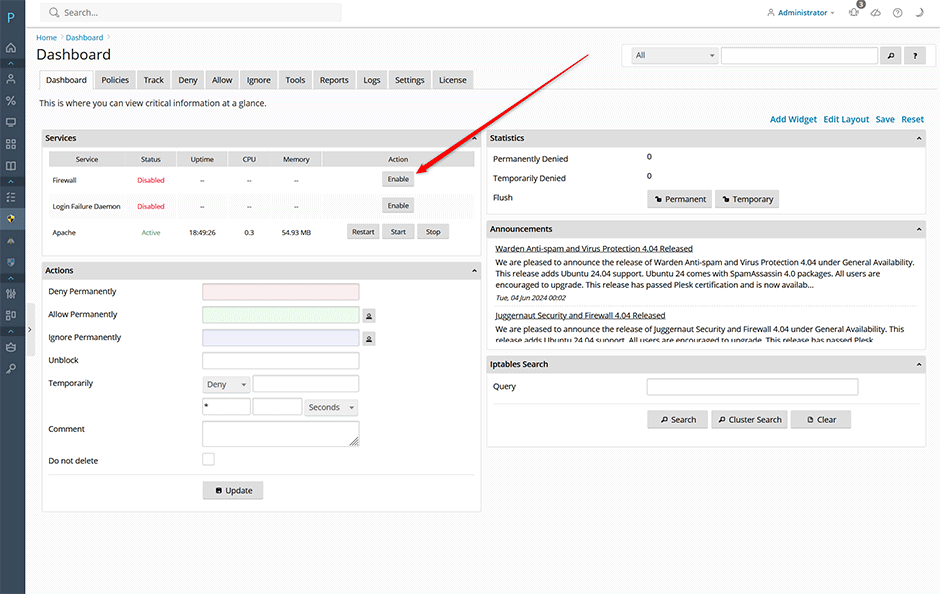
- To re-enable the service, click the Enable button next to the firewall service entry.
Disable or Enable the Firewall via Command Line Interface
To manage the firewall and login failure daemon directly from the terminal, execute the following commands with appropriate privileges:
To disable the firewall:
csf -xTo enable the firewall:
csf -eTroubleshooting and Best Practices
- Immediate Re-enablement: Always re-enable the firewall immediately after completing diagnostic tests to restore network security.
- Verify Service Status: After toggling the firewall, verify that dependent services (e.g., web servers, databases) are functioning as expected before concluding your troubleshooting session.
- Log Review: If connectivity issues persist after disabling the firewall, review application logs and network configurations to identify alternative root causes.
