
Overview
This article provides step-by-step instructions for creating and verifying custom spam filtering rules within the Warden platform. Custom rules can be configured via the web interface or the command line interface (CLI). Rule names must not exceed 22 characters, and scoring values support both positive and negative integers to influence message classification.
Adding a Custom Rule via Web Interface
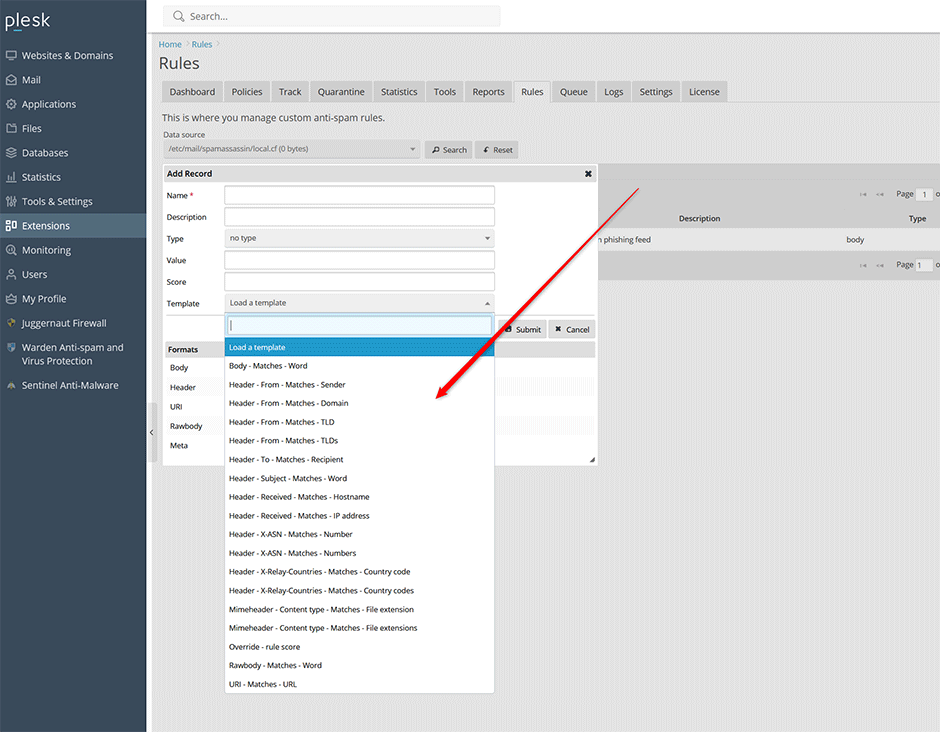
- Navigate to Warden > Rules > Custom Rules and click the Add button.
- (Optional) Select a prebuilt configuration from the Template dropdown menu. For additional documentation on rule syntax, refer to the official rules guide.
- In the Name field, enter a unique identifier for the rule (maximum 22 characters).
- In the Score field, assign a positive or negative value to determine how the rule impacts message classification.
- Click Update to save and apply the configuration.
Adding a Custom Rule via Command Line Interface
Administrators can also manage custom rules using the Warden CLI. To view available parameters and usage syntax, execute:
warden --task=antispam:rules:customrulesTo add a new rule, use the following command structure:
warden --task=antispam:rules:customrules --oper=rule_add --name=TEST --description='some description' --type=header --value='Subject =~ viagra' --score=100Verifying Custom Rules
Custom rules can be validated using either the Message Log or the Spam Report tool. Follow the appropriate method below to confirm rule execution.
Method 1: Message Log
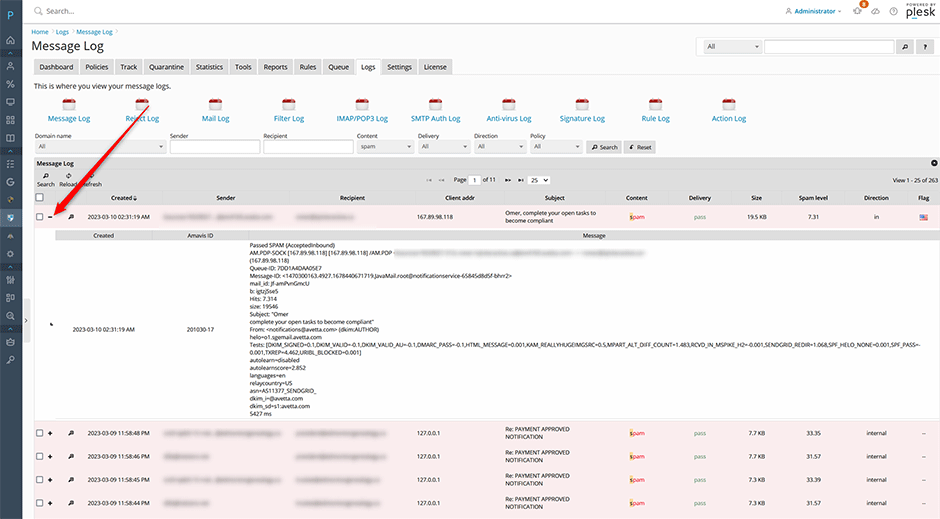
- Navigate to Logs > Message Log.
- Locate a processed message and click the plus icon (+) to expand its details.
- Review the Tests: section for a breakdown of matched rules. Any active custom rules will appear in this list.
Note: Amavis must be configured to verbose mode under Settings > Content Filter Settings > Filter Settings to display detailed rule matches in the log.
Method 2: Spam Report Tool
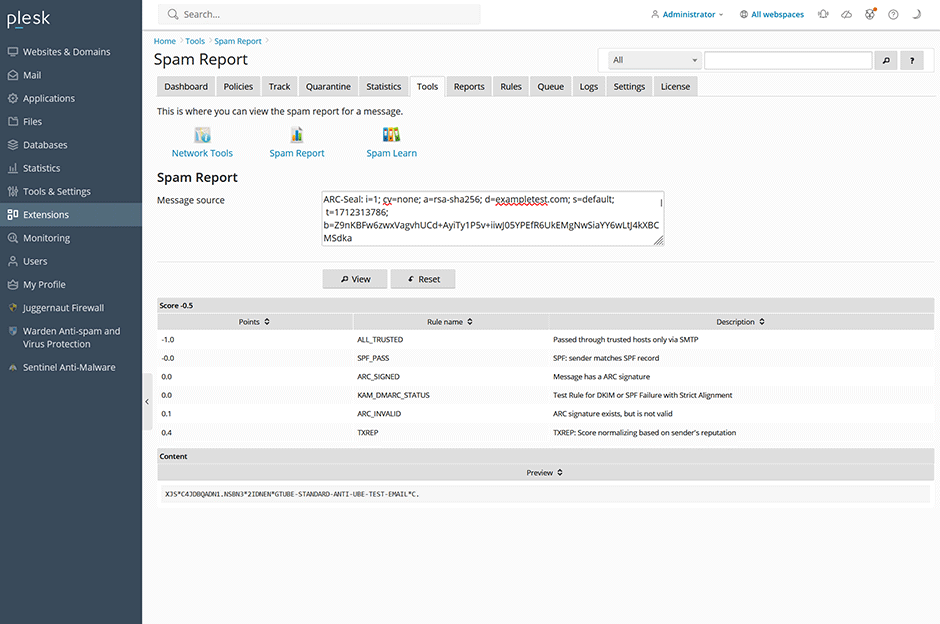
- Navigate to Tools > Spam Report.
- Paste the full raw source of an email message into the input field.
- Submit the request to generate a report. Matched custom rules will be listed in the results.
Troubleshooting & Common Issues
- Rule not appearing in logs: Verify that Amavis verbose mode is enabled under Settings > Content Filter Settings > Filter Settings. Without verbose logging, detailed test breakdowns will not display.
- Name field rejection or truncation: Ensure the rule name does not exceed 22 characters and contains only alphanumeric characters or standard underscores/hyphens.
- CLI syntax errors: Run
warden --task=antispam:rules:customruleswithout additional flags to review valid parameter options before executing rule creation commands. - Score not applying as expected: Confirm that the assigned score aligns with your global spam threshold settings. Positive scores increase spam likelihood, while negative scores decrease it.
