
Overview
Juggernaut Firewall provides a dedicated permission system to control extension access for different user roles within Plesk. This guide outlines how administrators can configure and manage these permissions via the web interface or command line.
Important Limitation
Note: Juggernaut Firewall does not support the native subscription permission system, as third-party extensions cannot access it. Access must be managed exclusively through the methods described below.
Supported User Types
The Juggernaut Firewall permission system applies to users created using the following Plesk roles:
- Sub-administrators: Created via Tools & Settings > Additional Administrator Accounts. Sub-admins have full access to all Juggernaut Firewall features.
- Resellers: Created via Resellers > Add Reseller. Resellers can only manage settings for their own customers and domains.
- Customers: Created via Customers > Add Customer. Customers can only manage settings for their own domains.
Configuring Access Permissions
Administrators can grant or restrict access to Juggernaut Firewall features using either the Plesk interface or the command line.
- Navigate to Juggernaut Firewall > Settings > Panel Application > Permissions.
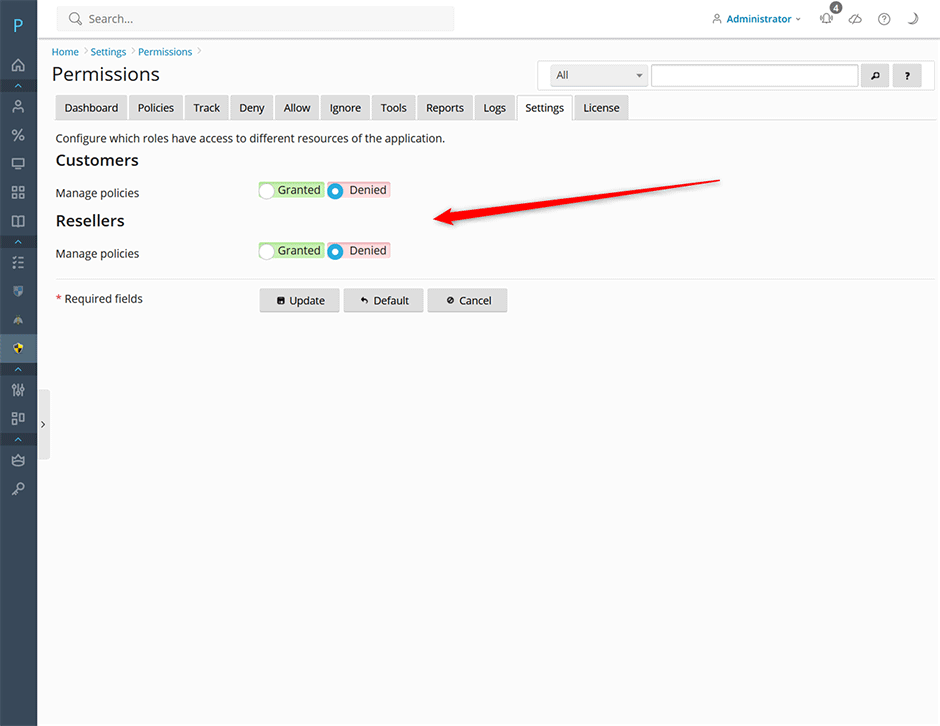
- Select the target user group (Sub-admin, Reseller, or Customer).
- Toggle permissions to grant or deny access to specific features.
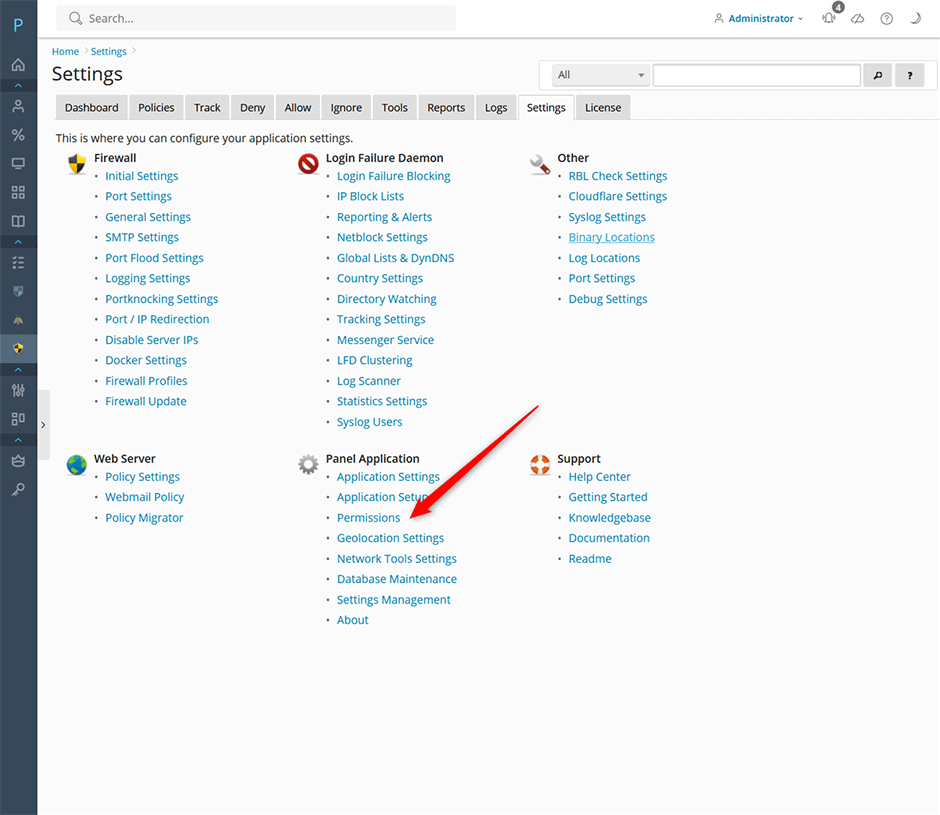
To manage permissions via the command line, execute the following:
juggernaut --task=application:permissionsPermission Behavior & Feature Access
Denied Permissions: Disabling a permission completely hides the corresponding interface section from the selected user group.
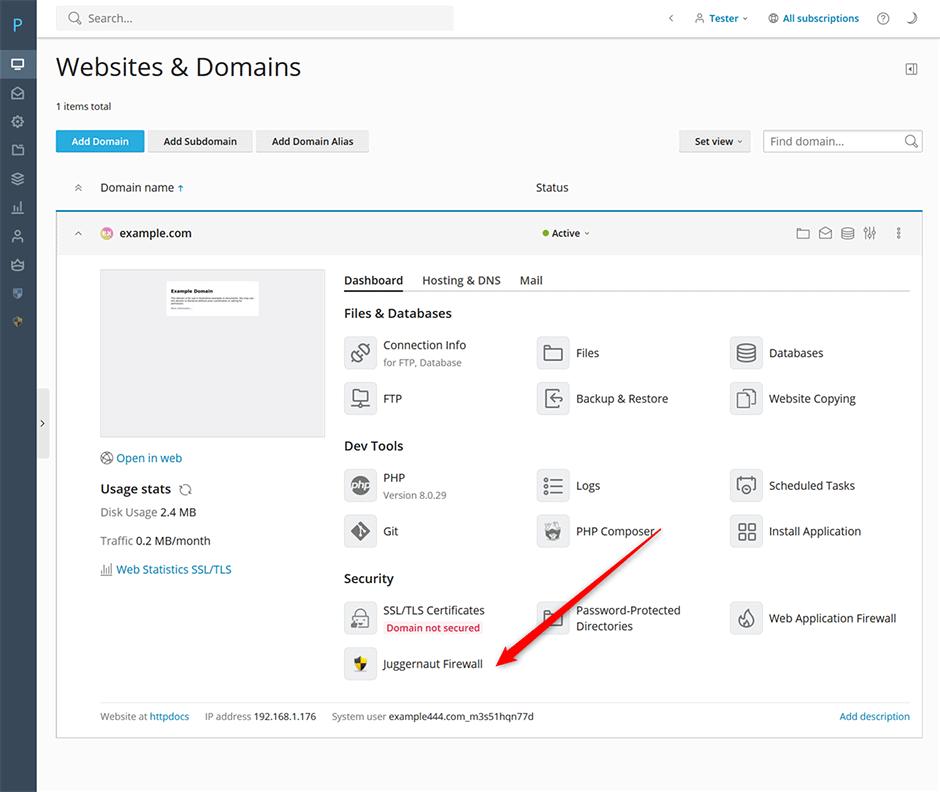
Granted Permissions: When access is enabled, the user group will see a direct link to the Juggernaut Firewall extension upon logging into Plesk.
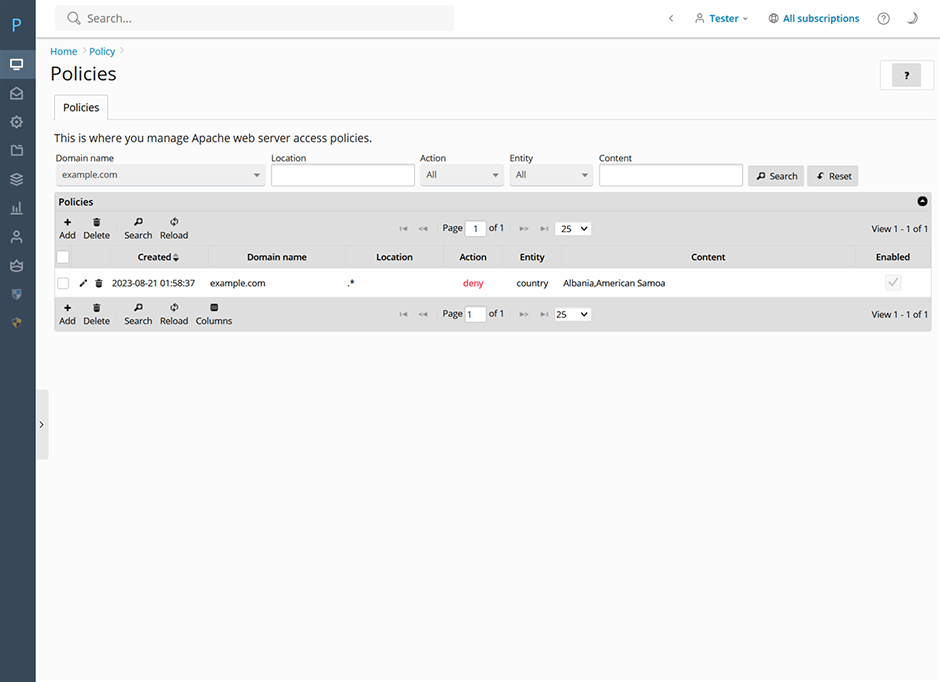
Geo-Filtering Management: Authorized users can configure geo-filtering policies to allow or deny traffic for their assigned domains. For detailed instructions on enabling web server-level geo-filtering, refer to the Geo-Filtering documentation.
Troubleshooting & Common Issues
- Permissions not applying: Ensure you are modifying permissions through the Juggernaut Firewall extension settings, as native Plesk subscription permissions are not supported.
- Missing extension link: If authorized users do not see the Juggernaut Firewall link in their dashboard, verify that access has been explicitly granted under Panel Application > Permissions.
