
Overview
This procedure restricts outgoing SMTP access to specific countries using Juggernaut Firewall and Postfix configuration. By limiting authenticated outbound mail to ports 587 (Submission) and 465 (SMTPS), you can effectively mitigate brute-force attacks targeting the incoming port (25).
Prerequisites
- All client email applications must be configured to use port 587 or 465 for outgoing mail. Authenticated outbound traffic on port 25 will be disabled.
- Applications utilizing the PHP
mail()function and Roundcube Webmail will continue to operate without modification. - A valid MaxMind license key is required for geolocation-based filtering.
Step 1: Obtain a MaxMind API Key
If you have not already done so, register for a free MaxMind API key and download the required databases. For detailed instructions, refer to How do I sign up for a free MaxMind license key?.
Step 2: Enable the Submission Port in Plesk
- Navigate to Tools & Settings > Mail Server Settings.
- Select the checkbox for Enable SMTP service on port 587 on all IP addresses.
- Click OK to apply the changes.
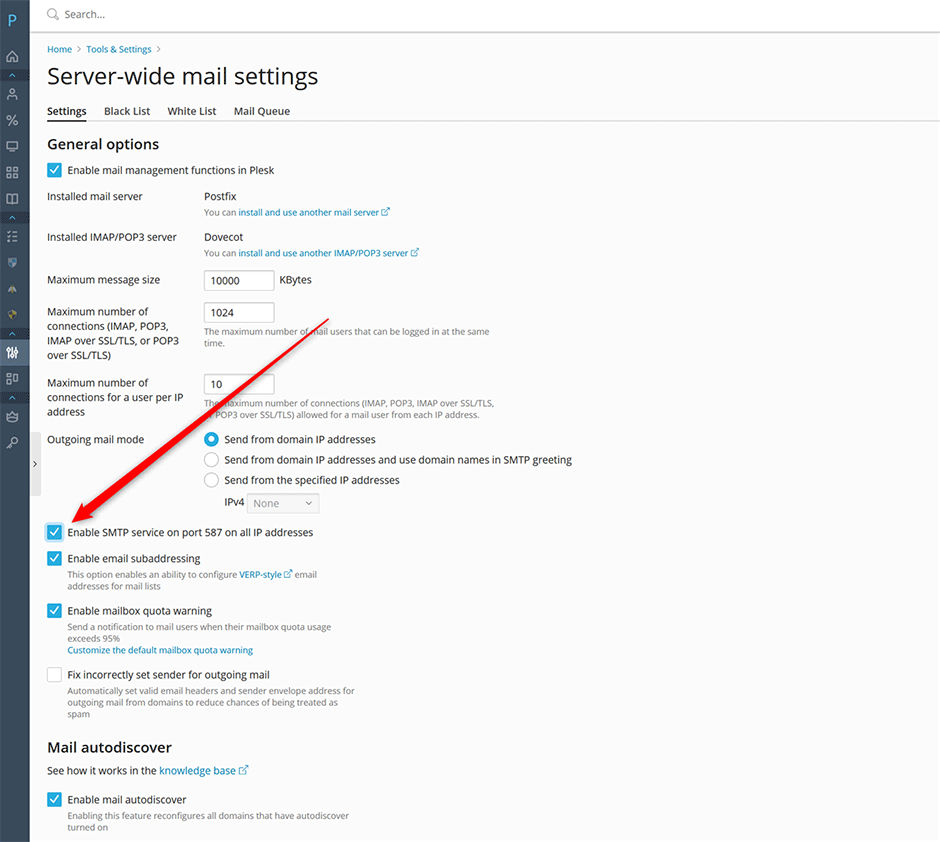
Step 3: Restrict Access via Juggernaut Firewall
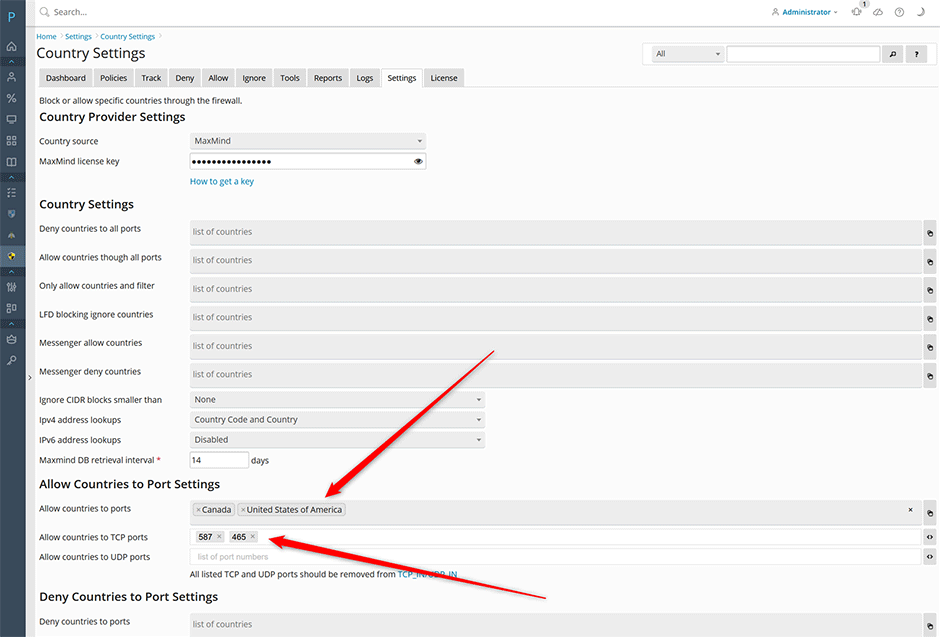
- Navigate to Juggernaut Firewall > Settings > Firewall > Country Settings.
- In the Allow countries to ports section, select the geographic regions permitted to send mail through the Submission and SMTPS ports.
- Add ports 587 and 465 to the Allow countries to TCP ports field.
- Click Update to save the configuration.
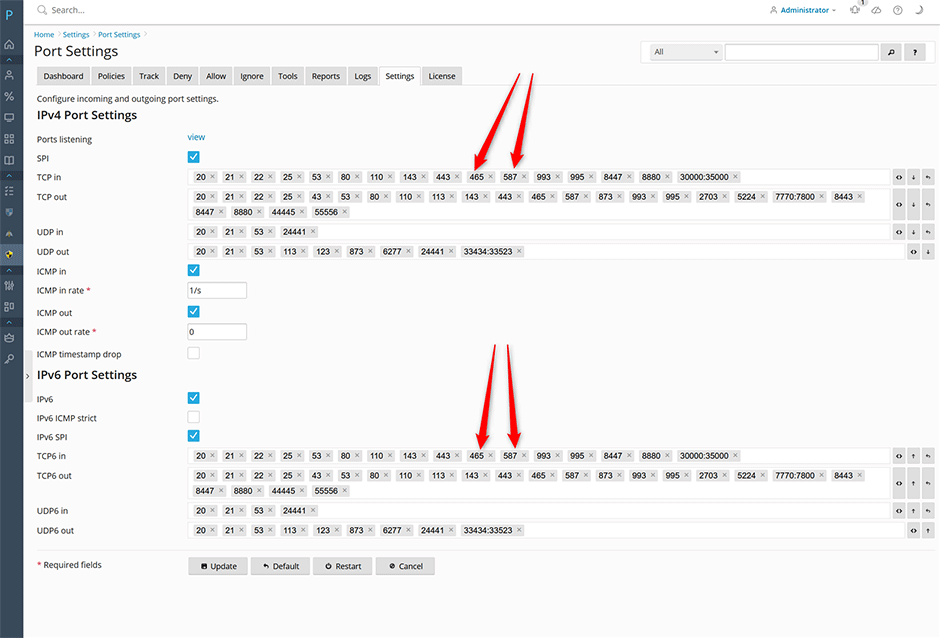
- Navigate to Juggernaut Firewall > Settings > Firewall > Port Settings.
- Remove ports 587 and 465 from both the TCP in and TCP6 in lists.
- Click Update to save the changes.
- Click Restart to apply the firewall rules and restart the login failure daemon.
Step 4: Disable SMTP Authentication on Port 25 in Postfix
With port restrictions applied, disable SMTP authentication on the incoming port (25) to prevent brute-force attempts. Execute the following commands via SSH:
// make a backup of your postfix master file
cp -a /etc/postfix/master.cf{,.orig}

// disable smtp authentication on the smtp port 25
postconf -P smtp/inet/smtpd_sasl_auth_enable=no

// reload postfix
postfix reload
After reloading Postfix, SMTP authentication will be disabled on port 25. Only clients from approved countries using ports 587 or 465 will be able to send authenticated mail. Attempts to authenticate via port 25 will result in the following error:
An error occurred while sending mail. The mail server responded: 5.7.1 <test@example.com>: Relay access denied. Please check the message recipient "user@example.com" and try again.Troubleshooting & Reverting Changes
If you encounter connectivity issues or need to revert these changes, follow the steps below:
- Navigate to Juggernaut Firewall > Settings > Firewall > Port Settings.
- Add ports 587 and 465 back to both the TCP in and TCP6 in lists.
- Click Update, then click Restart to apply the firewall changes.
Re-enable SMTP authentication in Postfix by executing the following commands:
// re-enable smtp authentication on the smtp port 25
postconf -PX smtp/inet/smtpd_sasl_auth_enable

// reload postfix
postfix reload