
Overview
This guide provides instructions for verifying the operational status of the ClamAV daemon, monitoring system resources, and resolving common performance issues such as high CPU load or memory constraints. Ensure you have root or sudo access to the server before proceeding with command-line operations.
Checking ClamAV Status
Warden Web Interface Method
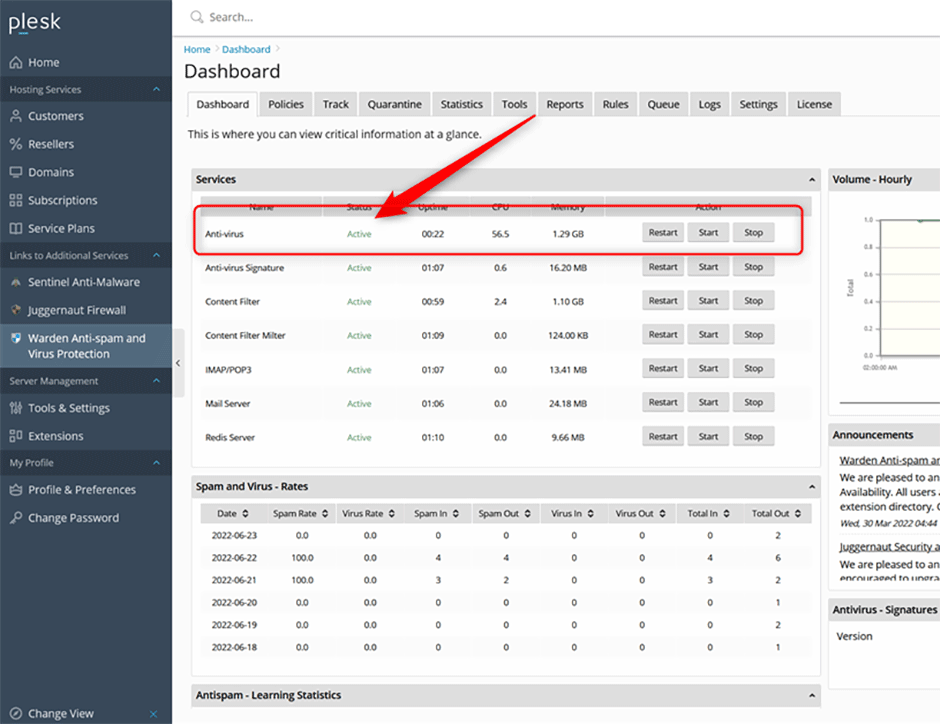
Navigate to the Warden Services dashboard widget and locate the Anti-virus line. The status indicator should display as green and Active. Clicking Active or Inactive in the status column provides additional diagnostic information.
Command Line Method
Execute the appropriate command based on your operating system:
AlmaLinux/CloudLinux/RHEL:
systemctl status clamd@scan
Debian/Ubuntu:
systemctl status clamav-daemonViewing Configuration and Logs
Current Configuration
Retrieve the active ClamAV configuration by executing:
clamconfDaemon Logs
Access logs via the web interface at Warden -> Logs -> Anti-virus Logs. To monitor real-time daemon activity from the command line, use the following commands:
AlmaLinux/CloudLinux/RHEL:
tail -f /var/log/clamd.scan
Debian/Ubuntu:
tail -f /var/log/clamav/clamav.logMonitoring Resource Usage
Utilize the clamdtop utility to monitor real-time CPU and memory consumption by the ClamAV daemon. Execute the command corresponding to your distribution:
AlmaLinux/CloudLinux/RHEL:
clamdtop --config-file=/etc/clamd.d/scan.confDebian/Ubuntu:
clamdtop --config-file=/etc/clamav/clamd.conf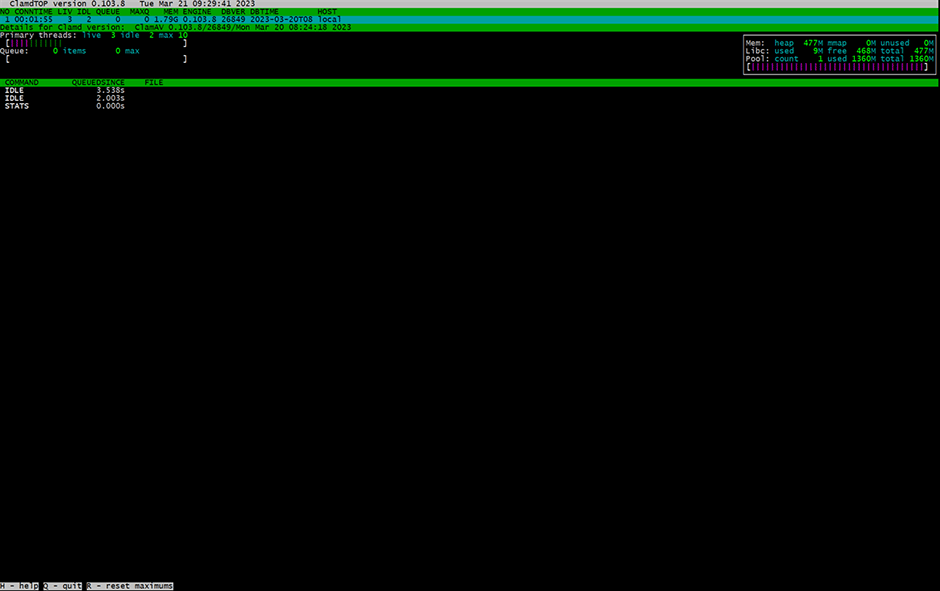
Troubleshooting Common Issues
High Server Load and CPU Usage
Elevated server load typically occurs when the ClamAV daemon (clamd) is inactive. By default, Amavis falls back to the secondary clamscan binary during daemon failures. Unlike the optimized clamd service, clamscan operates as a non-daemonized process that reloads virus signatures into memory for every scan, significantly increasing CPU and memory overhead.
To prevent this fallback behavior:
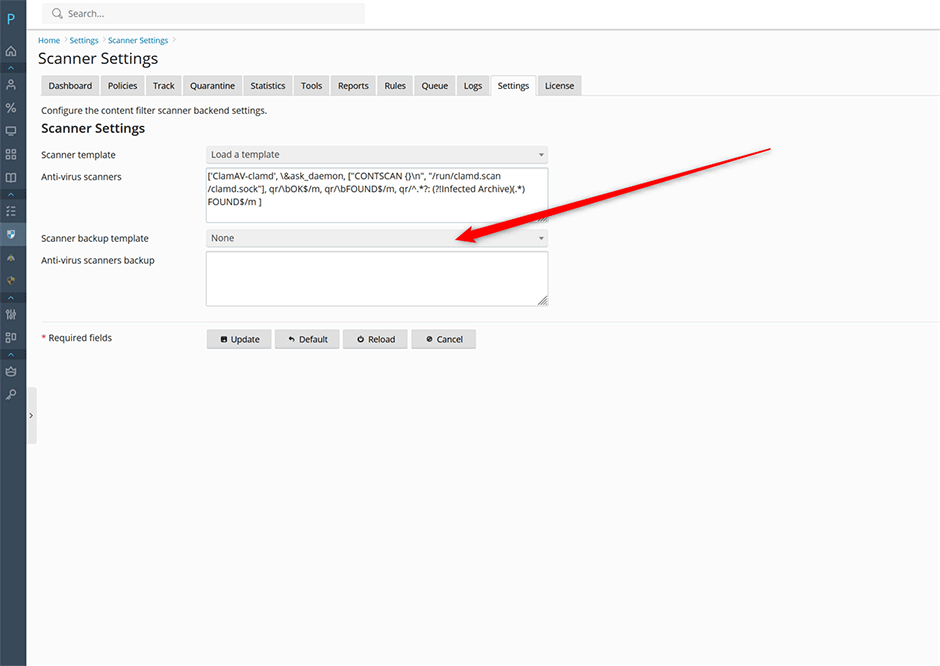
- Navigate to Warden -> Settings -> Scanner Settings.
- Locate the Scanner backup template field and set it to None.
- Click Update to apply the changes.
Verify the configuration by inspecting the appropriate Amavis configuration file:
- CentOS/RHEL/CloudLinux/AlmaLinux: /etc/amavisd/warden.conf
- Debian/Ubuntu: /etc/amavis/conf.d/99-warden
Ensure the backup scanner array is empty:
@av_scanners_backup = ();Memory Constraints and OOM Killer Interventions
Insufficient available memory frequently causes the Linux Out-of-Memory (OOM) Killer to terminate the ClamAV daemon. Verify available system memory using:
# free -m
              total        used        free      shared  buff/cache   available
Mem:          64049       30895       15313        3113       17840       29387
Swap:         15259        4333       10926
A minimum of 4 GB of RAM is recommended, depending on concurrent services. To identify OOM-related terminations, search the system logs:
// AlmaLinux/CloudLinux/RHEL
zgrep "Out of memory" /var/log/messages*

// Debian/Ubuntu
zgrep "Out of memory" /var/log/syslog*

Jun 19 19:35:21 el8p18 kernel: Out of memory: Killed process 1650121 (clamd) total-vm:3118856kB, anon-rss:2262988kB, file-rss:0kB, shmem-rss:0kB, UID:981 pgtables:5888kB oom_score_adj:0
Jun 19 20:30:33 el8p18 kernel: Out of memory: Killed process 1992340 (clamd) total-vm:3072516kB, anon-rss:1895824kB, file-rss:0kB, shmem-rss:0kB, UID:981 pgtables:5792kB oom_score_adj:0
Jun 19 21:22:52 el8p18 kernel: Out of memory: Killed process 2007089 (clamd) total-vm:3093760kB, anon-rss:1779240kB, file-rss:0kB, shmem-rss:0kB, UID:981 pgtables:5816kB oom_score_adj:0
Configuring Swap Space
Systems without swap space are highly susceptible to OOM events. Verify existing swap allocation with:
# cat /proc/swaps
Filename                                Type            Size            Used            Priority
/dev/dm-1                               partition       2097148         735832          -2
If no swap partition or file is present, create a minimum 2 GB swap file following standard Linux distribution guidelines. Refer to external documentation for detailed creation steps.
Adjusting OOM Score for ClamAV
To prevent the kernel from terminating the ClamAV daemon during memory pressure, adjust its OOM score:
- Edit the systemd service file:
// AlmaLinux/CloudLinux/RHEL systemctl edit --full clamd@scan // Debian/Ubuntu # systemctl edit --full clamav-daemon - Add OOMScoreAdjust=-1000 to the [Service] section:
[Unit] Description=Clam AntiVirus userspace daemon Documentation=man:clamd(8) man:clamd.conf(5) https://docs.clamav.net/ # Check for database existence ConditionPathExistsGlob=/var/lib/clamav/main.{c[vl]d,inc} ConditionPathExistsGlob=/var/lib/clamav/daily.{c[vl]d,inc} [Service] ExecStart=/usr/sbin/clamd --foreground=true # Reload the database ExecReload=/bin/kill -USR2 $MAINPID StandardOutput=syslog TimeoutStartSec=420 OOMScoreAdjust=-1000 [Install] WantedBy=multi-user.target - Restart the service:
// AlmaLinux/CloudLinux/RHEL
systemctl restart clamd@scan

// Debian/Ubuntu
systemctl restart clamav-daemon
Disabling Concurrent Database Reloads
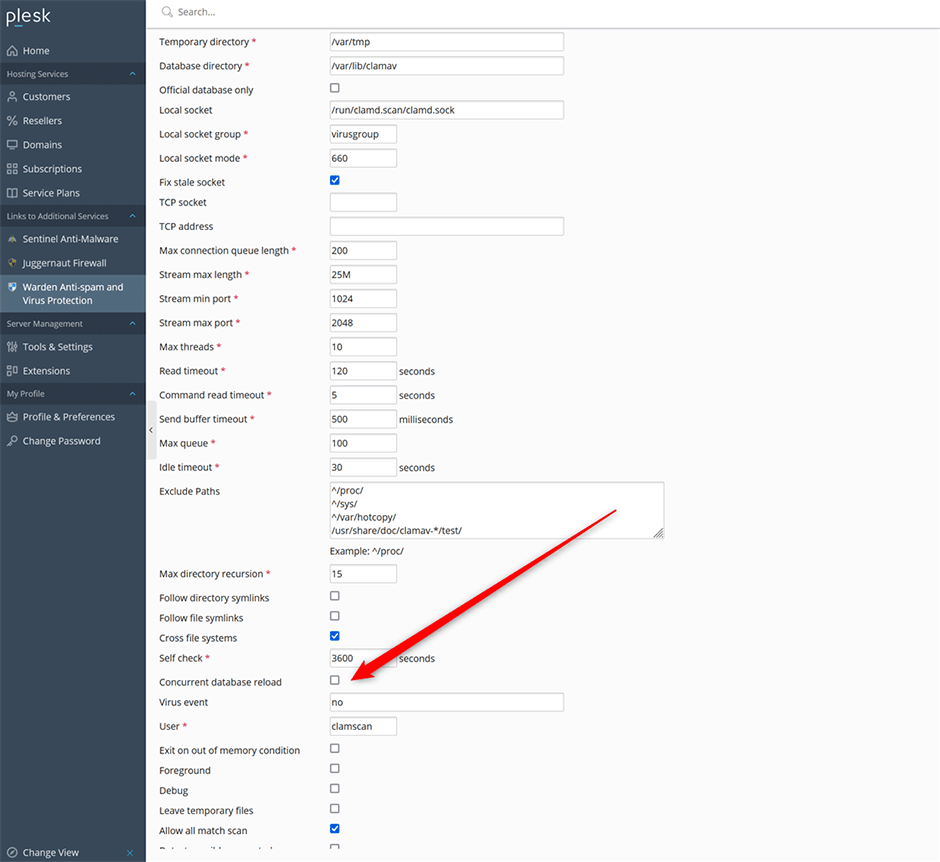
The ConcurrentDatabaseReload option allows ClamAV to maintain scanning operations during signature updates. However, this process temporarily doubles memory requirements and may trigger OOM terminations on servers with less than 8 GB of RAM. To disable:
- Navigate to Warden -> Settings -> Anti-virus Settings.
- Uncheck the Concurrent database reload option.
Optimizing Amavis Memory Allocation
Reduce memory contention by limiting the number of concurrent Amavis processes. Adjust the Max servers parameter via Warden -> Settings -> Content Filter -> Filter Settings. Refer to the dedicated Amavis memory management documentation for detailed configuration guidelines.
