
Overview
The Juggernaut installer requires the Apache mod_status module to be active and accessible via local connections. If you encounter an error indicating that Apache tracking is not configured, follow the procedures below to enable the module, restrict access to localhost, update the CSF firewall configuration, and verify connectivity.
Prerequisites
- Root or sudo privileges on the server
- Plesk control panel installed (required for
httpd_modules_ctl) - CSF (ConfigServer Security & Firewall) installed and active
Enable mod_status on AlmaLinux/CloudLinux/RHEL
- Enable the Apache module using the Plesk utility:
plesk sbin httpd_modules_ctl -e status - Create a new configuration file at /etc/httpd/conf.d/server-status.conf and insert the following directives:
<IfModule mod_status.c> ExtendedStatus on <Location /server-status> SetHandler server-status Order deny,allow Deny from all Allow from 127.0.0.1 ::1 </Location> </IfModule> - Restart the Apache service to apply changes:
systemctl restart httpd
Enable mod_status on Debian/Ubuntu
- Enable the Apache module using the Plesk utility:
plesk sbin httpd_modules_ctl -e status - Edit /etc/apache2/mods-enabled/status.conf and ensure it matches the following configuration, which restricts access to local connections:
<IfModule mod_status.c> # Allow server status reports generated by mod_status, # with the URL of http://servername/server-status # Uncomment and change the "192.0.2.0/24" to allow access from other hosts. <Location /server-status> SetHandler server-status Require local #Require ip 192.0.2.0/24 </Location> # Keep track of extended status information for each request ExtendedStatus On # Determine if mod_status displays the first 63 characters of a request or # the last 63, assuming the request itself is greater than 63 chars. # Default: Off #SeeRequestTail On <IfModule mod_proxy.c> # Show Proxy LoadBalancer status in mod_status ProxyStatus On </IfModule> </IfModule> - Restart the Apache service:
service apache2 restart
Configure CSF Apache Tracking URL
The login failure daemon (LFD) requires the correct endpoint to query Apache status. This endpoint depends on whether Nginx is active as a reverse proxy.
- Verify the current Nginx status:
/usr/local/psa/admin/sbin/nginxmng -s - Open /etc/csf/csf.conf in a text editor and locate the PT_APACHESTATUS directive. Update it based on your Nginx configuration:
- If Nginx is enabled:
PT_APACHESTATUS = "http://localhost:7080/server-status" - If Nginx is disabled:
PT_APACHESTATUS = "http://localhost/server-status"
- If Nginx is enabled:
- Restart the LFD service to apply the configuration:
service lfd restart
Verify Configuration
Confirm that mod_status is correctly configured and accessible locally using the lynx command-line browser.
- Install
lynx:- CentOS/RHEL/CloudLinux:
yum install lynx - Debian/Ubuntu:
apt-get install lynx
- CentOS/RHEL/CloudLinux:
- Test the appropriate endpoint based on your Nginx configuration:
- If Nginx is enabled (Plesk default):
lynx http://localhost:7080/server-status - If Nginx is disabled:
lynx http://localhost/server-status
- If Nginx is enabled (Plesk default):
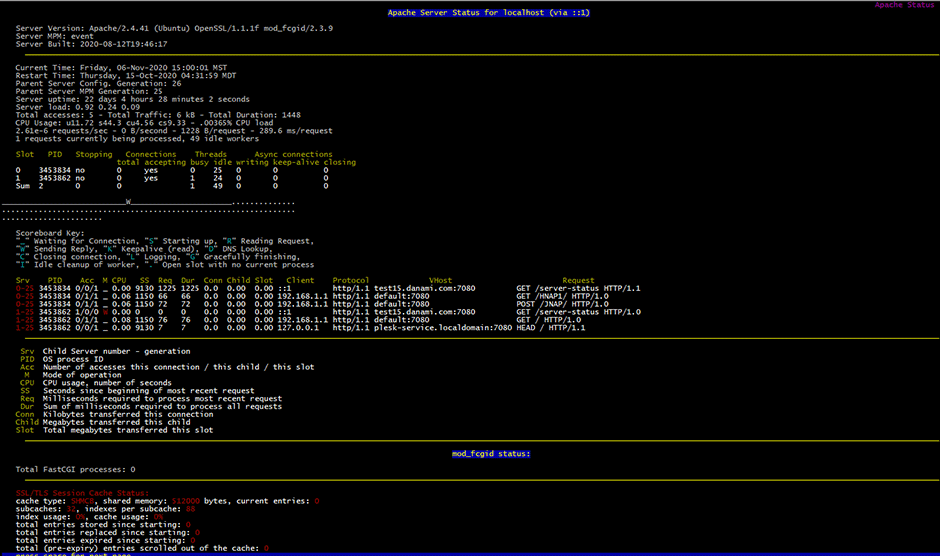
- A successful connection will display the Apache server status page in the terminal.
Troubleshooting
- Service Restart Failures: If Apache fails to restart, check the error logs at /var/log/httpd/error_log (RHEL/CentOS) or /var/log/apache2/error.log (Debian/Ubuntu) for syntax errors in the configuration files.
- Connection Refused: Ensure that
mod_statusis fully enabled and that no firewall rules are blocking local loopback traffic on ports 80 or 7080. - CSF Configuration Not Applying: After modifying /etc/csf/csf.conf, always restart the LFD service using
service lfd restart. Changes will not take effect until the daemon is reloaded. - Lynx Output Shows 403 Forbidden: Verify that the
Allow fromorRequire localdirectives in your Apache configuration explicitly permit connections from127.0.0.1and::1.
