
Overview
This article outlines the procedure for enabling a custom login failure trigger within the Juggernaut Firewall management interface.
Enabling a Custom Login Failure Trigger
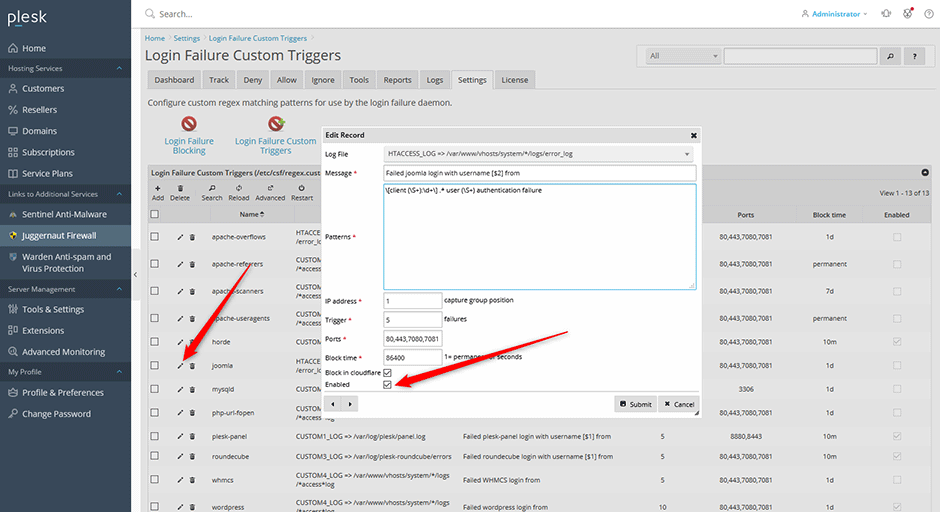
- Navigate to Juggernaut Firewall -> Settings -> Login Failure Daemon -> Login Failure Blocking -> Login Failure Custom Triggers.
- Locate the desired custom trigger and click the Edit icon.
- Select the Enabled checkbox, then click Submit to save the configuration.
- Click the Restart button in the grid interface to restart the login failure daemon and apply the changes.
Troubleshooting
- If the trigger does not activate, verify that the login failure daemon has successfully restarted by checking the service status in the grid interface.
- Confirm that the custom trigger parameters align with the target application's authentication logs to ensure proper detection and blocking behavior.
