
How can I enable a custom login failure trigger for an application?

Overview

This article outlines the procedure for enabling a custom login failure trigger within the Juggernaut Firewall management interface.

Enabling a Custom Login Failure Trigger

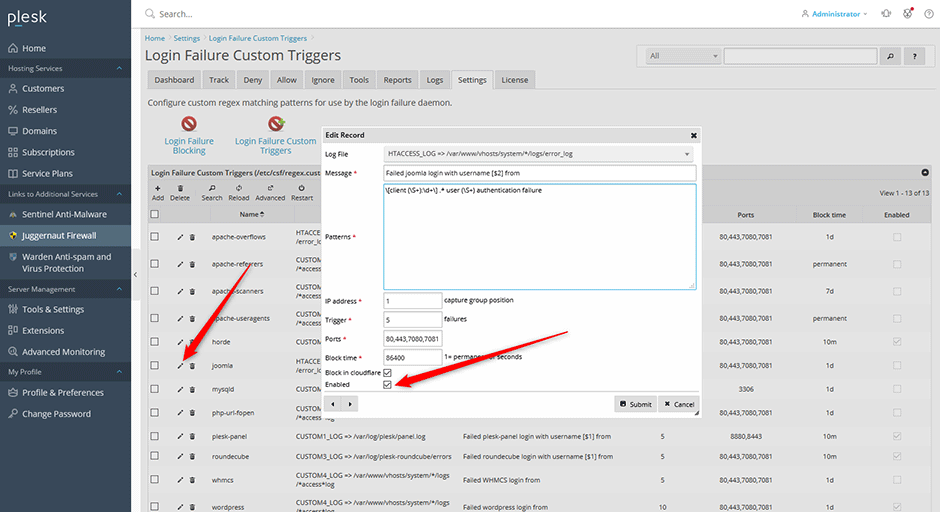
  1. Navigate to Juggernaut Firewall -> Settings -> Login Failure Daemon -> Login Failure Blocking -> Login Failure Custom Triggers.
  2. Locate the desired custom trigger and click the Edit icon.
  3. Select the Enabled checkbox, then click Submit to save the configuration.
  4. Click the Restart button in the grid interface to restart the login failure daemon and apply the changes.
Troubleshooting

  • If the trigger does not activate, verify that the login failure daemon has successfully restarted by checking the service status in the grid interface.
  • Confirm that the custom trigger parameters align with the target application's authentication logs to ensure proper detection and blocking behavior.

  • trigger, custom
  • 2 gebruikers vonden dit artikel nuttig
Was dit antwoord nuttig?

Gerelateerde artikelen

Where are the configuration files for Juggernaut Firewall located?

Configuration files are located in the /etc/csf/ directory with the main firewall configuration...

Can I use Juggernaut Firewall to block Wordpress bruteforce attacks?

Yes we support blocking attacks like these very easily. See below for more information: How can...

How can I install or upgrade the extension?

We provide free installation and configuration for all our paid licenses. Open a support ticket...

How can I change the interface language of the extension?

Overview This article provides instructions on how to change the interface language within the...

How can I get detailed help about a specific setting?

Overview This article outlines how to access contextual assistance and detailed configuration...