How do I run a malware scan using Sentinel Anti-malware?

Overview

This article provides step-by-step instructions for initiating malware scans, reviewing scan results, and managing detected threats using Sentinel Anti-malware.

Running a Malware Scan

  1. Navigate to Sentinel Anti-malware > Scan.
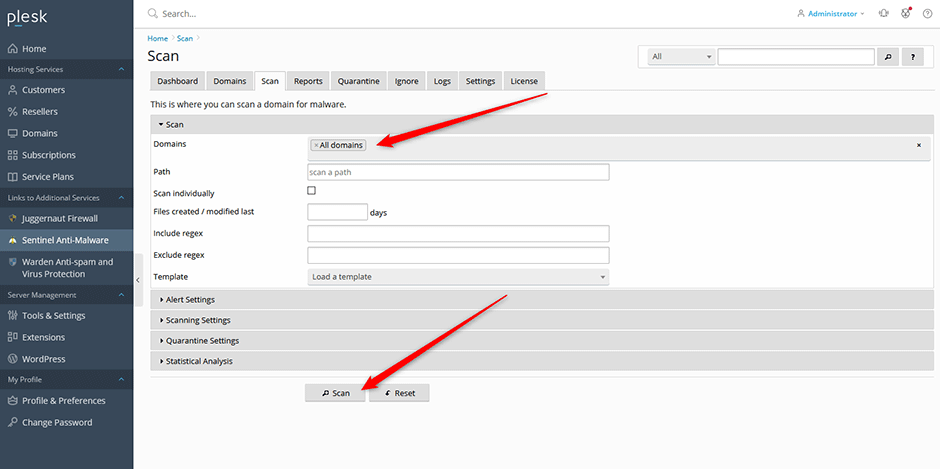
  2. Select the specific domains you wish to scan, or choose All domains to include every domain in your account.
  3. Click the Scan button to initiate the process.
  4. Once the scan completes, locate the generated report under the Reports tab.
Viewing Scan Reports

  1. Navigate to Sentinel Anti-malware > Reports.
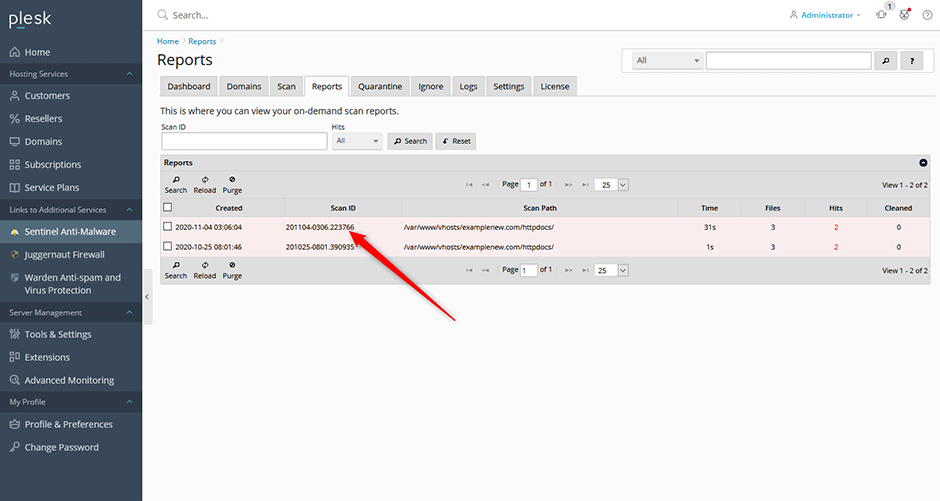
  2. In the results grid, click the desired Scan ID to open the detailed report.
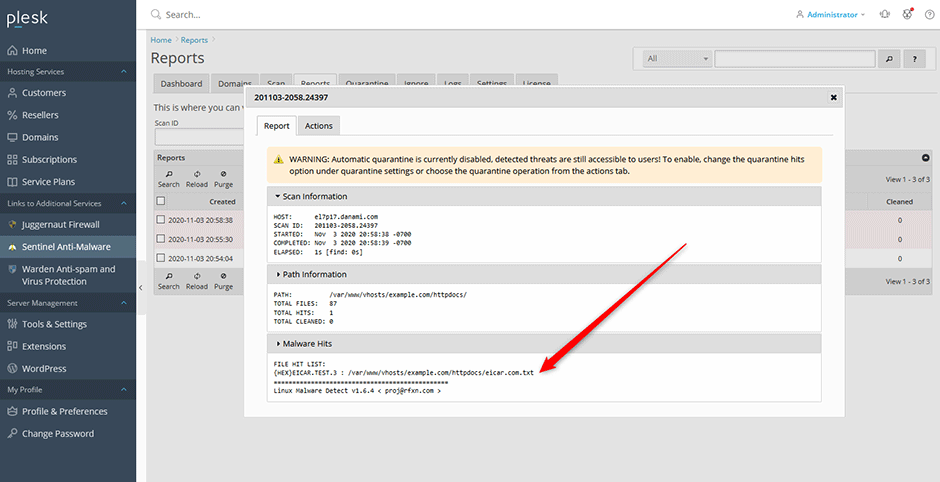
  3. Review any identified threats listed under the Malware Hits section.
Managing Detected Threats

  1. Open the relevant scan report and select the Actions tab.
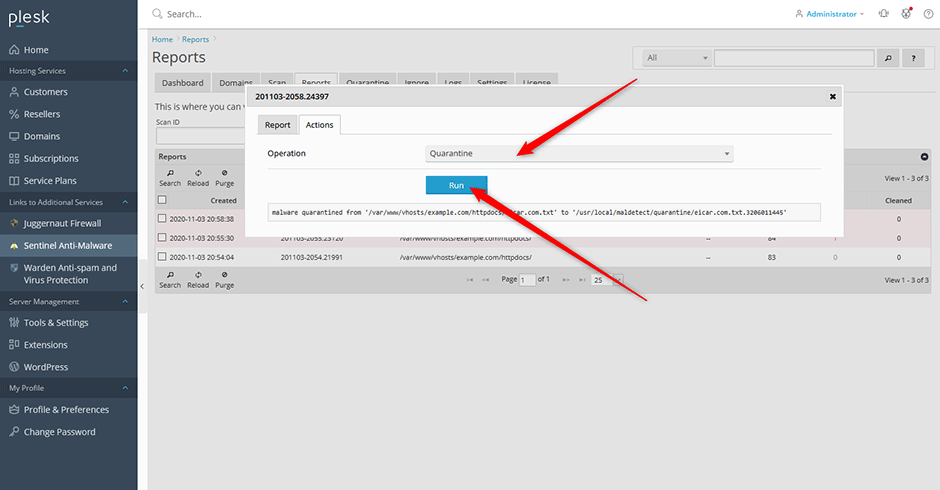
  2. Select a remediation operation from the dropdown menu: Quarantine, Restore, Clean, or Email.
  3. Click the Run button to execute the selected action.
  • scan
  • 0 Users Found This Useful
Was this answer helpful?

Related Articles

How can I install or upgrade the extension?

We provide free installation and configuration for all our paid licenses. Open a support ticket...

How can I change the interface language of the extension?

Overview This article provides instructions on how to change the interface language within the...

How can I get detailed help about a specific setting?

Overview This article outlines how to access contextual assistance and detailed configuration...

How can I monitor ClamAV daemon memory and CPU usage from the command line?

Overview The clamdtop utility provides real-time monitoring of the ClamAV daemon's memory and...

How can I optimize MySQL/MariaDB using the Plesk Performance Booster tool?

Overview The Performance Booster utility enables administrators to optimize MariaDB...