
Overview
This article provides instructions for accessing detailed spam analysis reports, reviewing matched filtering rules, and interpreting scoring metrics within the message and filter logs. These features support email security monitoring and system performance optimization.
Accessing Spam Reports
To view a comprehensive breakdown of matched spam filtering rules for a specific message:
- Navigate to the Message Log.
- Locate the target entry and click the magnifying glass icon adjacent to it.
- Select the Spam Report tab to display the detailed rule analysis.
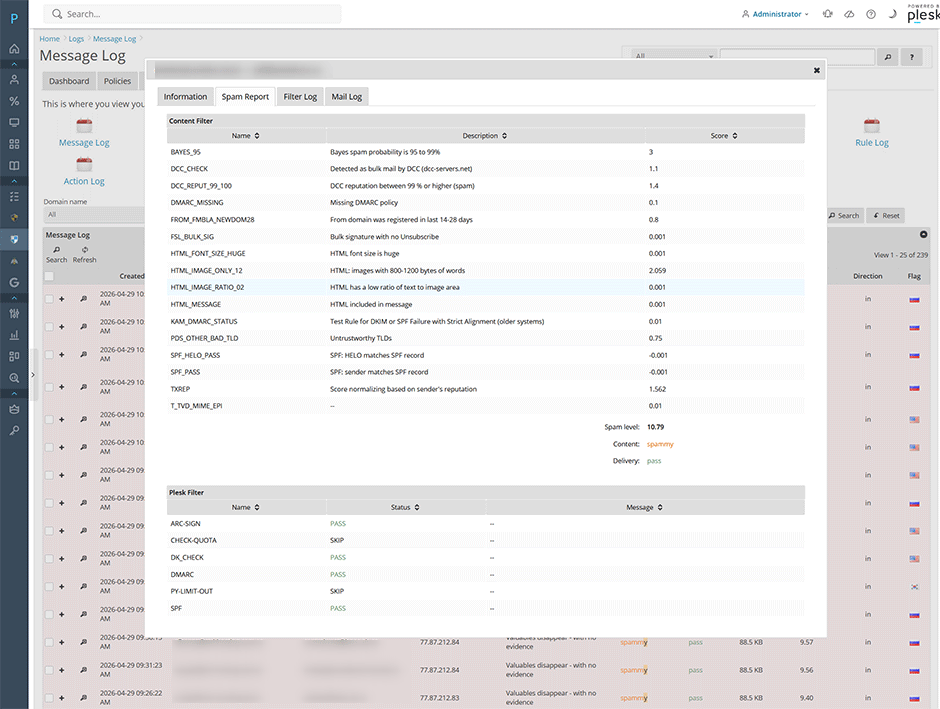
Viewing Rule Breakdowns and Scan Times
You can also review matched rules and message processing durations directly within the filter logs:
- Open the Filter Log tab.
- Locate the target log entry and examine the Tests: line to view all evaluated rules and their corresponding scores.
- Review the final value in each log entry (measured in milliseconds) to identify message scan times. This metric is essential for diagnosing performance bottlenecks during email processing.
Example Log Entry
Passed SPAMMY {AcceptedInbound}
AM.PDP-SOCK [167.89.95.154] [167.89.95.154] /AM.PDP <bounces+3190231-9d63-mel.t=example.ca@email.marketing.example.com> -> <mel.t@test.com>
(167.89.95.154)
Queue-ID: 8B6A6405AC174
Message-ID: <WVQF-ccBSEW7qvSZeUwJ6A@geopod-ismtpd-0>
mail_id: On8b6VlSO_BP
b: jilxoWz0u
Hits: 9.667
size: 17080
Subject: "Wow
you got 2 clicks – see who! (raw: Wow
you got 2 clicks =?UTF-8?B?4oCT?= see who!)"
From: <membersuccess@example.com>
helo=o5.sg.marketing.example.com
Tests: [BAYES_00=-1.9,DCC_CHECK=2,DCC_REPUT_13_19=-0.1,DKIMWL_WL_HIGH=-0.687,DKIM_SIGNED=0.1,DKIM_VALID=-0.1,HTML_FONT_LOW_CONTRAST=0.001,HTML_MESSAGE=0.001,KAM_BODY_URIBL_PCCC=9,KAM_FROM_URIBL_PCCC=9,RCVD_IN_MSPIKE_H2=-0.001,SPF_HELO_NONE=0.001,SPF_PASS=-0.001,TXREP=-7.638,T_SCC_BODY_TEXT_LINE=-0.01,URIBL_BLOCKED=0.001]
autolearn=no autolearn_force=no
autolearnscore=19.205
languages=en
relaycountry=US
asn=AS11377_167.89.64.0/19
dkim_i=@marketing.example.com
dkim_sd=s1:marketing.example.com
3125 ms
Understanding Rule Scoring
The Tests: line displays individual rule evaluations that contribute to the final spam classification:
- Negative Scores: Indicate rules that classify the message as legitimate (HAM). These values reduce the overall spam score.
- Positive Scores: Indicate rules that flag characteristics associated with unsolicited mail (SPAM). These values increase the overall spam score.
If the cumulative positive score exceeds the configured policy threshold, the message is classified as SPAM and handled according to system policies.
Example Tests Line
Tests: [BAYES_00=-1.9,DCC_CHECK=2,DCC_REPUT_13_19=-0.1,DKIMWL_WL_HIGH=-0.687,DKIM_SIGNED=0.1,DKIM_VALID=-0.1,HTML_FONT_LOW_CONTRAST=0.001,HTML_MESSAGE=0.001,KAM_BODY_URIBL_PCCC=9,KAM_FROM_URIBL_PCCC=9,RCVD_IN_MSPIKE_H2=-0.001,SPF_HELO_NONE=0.001,SPF_PASS=-0.001,TXREP=-7.638,T_SCC_BODY_TEXT_LINE=-0.01,URIBL_BLOCKED=0.001]Troubleshooting and Performance Debugging
- Elevated Scan Times: If message processing durations consistently exceed acceptable thresholds, review the number of active filtering rules or external DNS lookups contributing to latency.
- Misclassified Messages: Analyze individual rule scores within the Tests: line to identify which specific checks are driving the classification. Adjust policy thresholds or update whitelist/blacklist configurations as required.
