
Overview
This article provides step-by-step instructions for configuring the Juggernaut Firewall Login Failure Daemon to monitor specific directories for file modifications and generate alerts when changes are detected.
Prerequisites
- Administrative access to the Juggernaut Firewall management interface
- A defined list of absolute directory paths requiring monitoring
Configure Monitored Directories
- Navigate to Juggernaut Firewall > Settings > Login Failure Daemon > Directory Watching > Directory Watching Paths.
- Enter the absolute paths of the directories you wish to monitor.
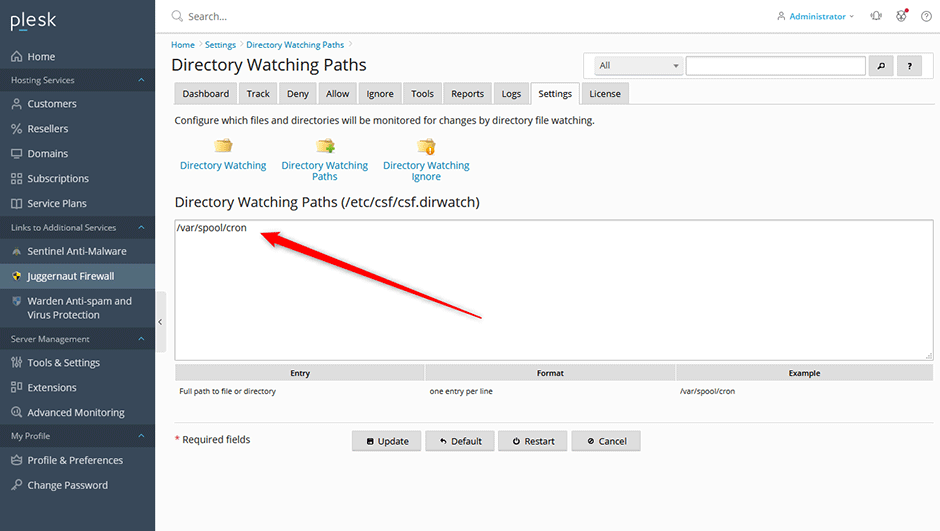
Note: Do not monitor the server root directory. The Login Failure Daemon generates cryptographic hashes and tracks every file within monitored paths, which can cause significant performance degradation if applied to large or system-level directories.
- Click Update to save the configuration.
- Click Restart to apply changes and restart the firewall and Login Failure Daemon services.
Enable Directory Watching
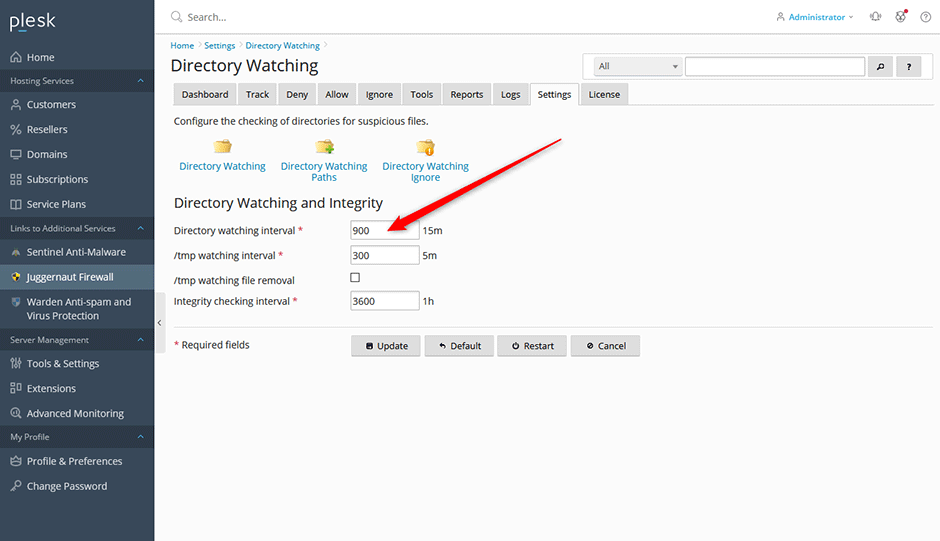
The directory watching interval determines how frequently (in seconds) the Login Failure Daemon scans configured paths for modifications. An alert is triggered whenever a change is detected within the specified timeframe.
- Navigate to Juggernaut Firewall > Settings > Login Failure Daemon > Directory Watching.
- Set the Directory watching interval value. A range between 900 and 3600 seconds is recommended to balance detection speed with system resource usage.
- Click Update to save the configuration.
- Click Restart to apply changes and restart the firewall and Login Failure Daemon services.
Troubleshooting & Common Issues
- Elevated CPU or Disk I/O Usage: Monitoring large directories or setting an interval below 900 seconds may increase system load. Adjust the interval upward or limit monitored paths to critical application directories only.
- Alerts Not Triggering: Verify that the specified directory paths are correct, exist on the filesystem, and are accessible by the daemon process. Ensure the service has been restarted after configuration changes.
- Excessive Alert Volume: If frequent legitimate updates generate unwanted alerts, consider increasing the monitoring interval or excluding volatile subdirectories from the watch list.
