
Overview
The Login Failure Daemon monitors authentication attempts across configured services and automatically implements blocking rules when predefined thresholds are exceeded. Adjusting the trigger parameters allows administrators to tailor security policies based on network traffic patterns, user behavior, and operational requirements.
Prerequisites
- Administrative access to the Juggernaut Firewall management interface.
Procedure
To modify the login failure trigger thresholds, follow these steps:
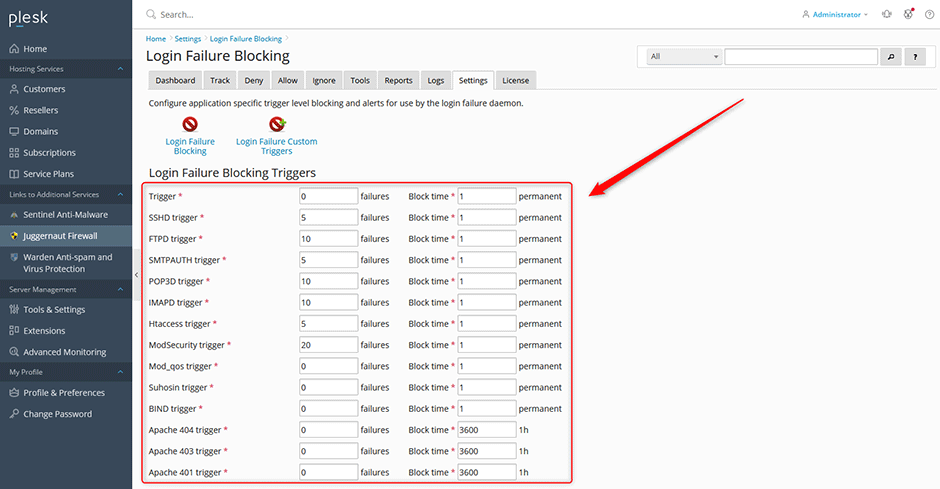
- Navigate to Juggernaut Firewall -> Settings -> Login Failure Daemon -> Login Failure Blocking.
- Locate the configuration fields for each monitored service. Adjust the number of failures and the corresponding time interval that will initiate a block.
- Click the Update button to apply and save the modified settings.
- Click the Restart button to restart the firewall services and reload the Login Failure Daemon with the new configuration.
Troubleshooting
- Settings not applying: Verify that the Update button was successfully clicked and that no validation errors are displayed in the interface. Clear browser cache if the UI appears unresponsive.
- Daemon not responding to new thresholds: Ensure the Restart action completed without interruption. Check system logs for service initialization messages or daemon startup failures.
- False positive blocks: Review the configured failure counts and time intervals. Increase the threshold values or extend the monitoring window if legitimate users are being blocked during peak usage periods or automated script executions.
