
Overview
Juggernaut Firewall provides configurable features to mitigate specific types of Distributed Denial-of-Service (DDoS) and Denial-of-Service (DoS) attacks. The following procedures outline how to configure connection limits, distributed attack tracking, netblock blocking, and flood protection within the firewall interface.
Block Excessive Connections
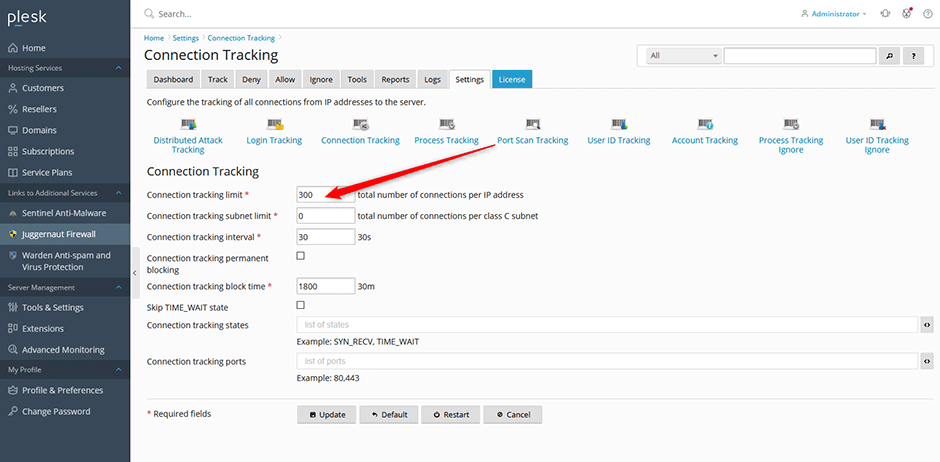
This feature monitors incoming connections from individual IP addresses. When the total number of connections exceeds a defined threshold, the offending IP is automatically blocked. Setting this value too low may inadvertently block legitimate traffic. A recommended threshold is between 250 and 400. To disable connection tracking, set the limit to 0.
- Navigate to Juggernaut Firewall > Settings > Login Failure Daemon > Tracking Settings > Connection Tracking.
- Set the Connection tracking limit to a value between 250-400. To restrict tracking to specific ports (e.g., excluding FTP), enter
80,443in the Connection tracking ports field. - Click Update to save your configuration.
- Click Restart to apply changes and restart the firewall and login failure daemon.
Block Distributed Attacks
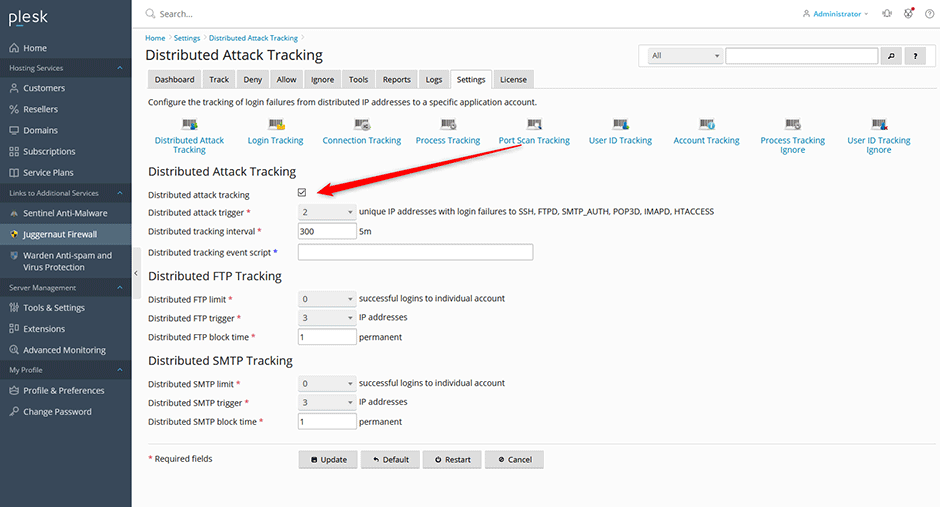
This feature tracks authentication failures across multiple IP addresses targeting a specific application account. When the number of failures meets the configured trigger threshold, all participating IP addresses are blocked. Tracking applies to LF_SSHD, LF_FTPD, LF_SMTPAUTH, LF_POP3D, LF_IMAPD, and LF_HTACCESS.
- Navigate to Juggernaut Firewall > Settings > Login Failure Daemon > Tracking Settings > Distributed Attack Tracking.
- Select the Distributed Attack Tracking checkbox to enable the feature.
- Click Update to save your configuration.
- Click Restart to apply changes and restart the firewall and login failure daemon.
Block Repeated Network Attacks
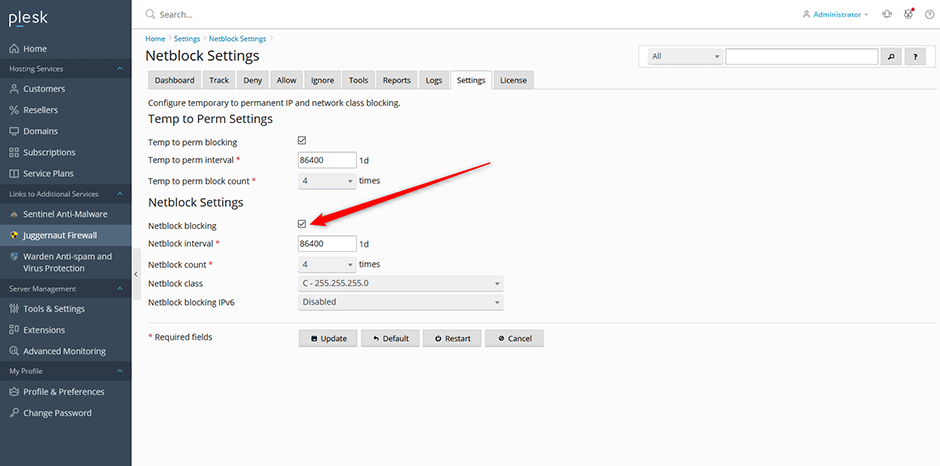
This feature permanently blocks entire network classes based on historical attack patterns. If individual IP addresses within the same class (LF_NETBLOCK_CLASS) are blocked more than a specified number of times (LF_NETBLOCK_COUNT) within a defined timeframe (LF_NETBLOCK_INTERVAL seconds), the entire network class is permanently blocked. This helps mitigate DDoS attacks originating from compromised networks.
- Navigate to Juggernaut Firewall > Settings > Login Failure Daemon > Netblock Settings.
- Select the Netblock blocking checkbox to enable the feature.
- Click Update to save your configuration.
- Click Restart to apply changes and restart the firewall and login failure daemon.
Mitigate SYN Flood and UDP Flood Attacks
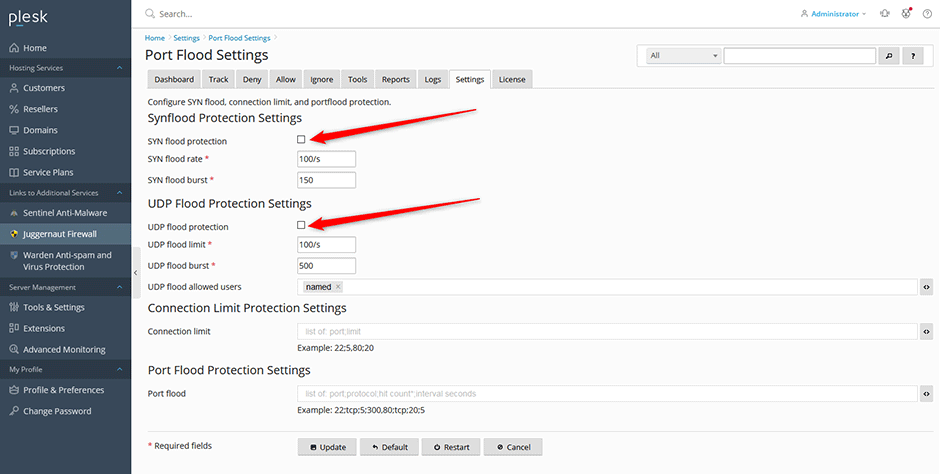
Juggernaut Firewall includes protection against TCP SYN packet floods and outbound UDP packet floods.
- SYN Flood Protection: Configures iptables to mitigate TCP SYN packet DoS attempts. This feature should only be enabled during an active attack, as it may slow down all new incoming connections when triggered.
- UDP Flood Protection: Limits outbound UDP packet floods, which are commonly generated by exploit scripts uploaded via vulnerable web applications. If your server relies on high-volume outbound UDP traffic (e.g., SNMP), adjust the UDPFLOOD_LIMIT and UDPFLOOD_BURST parameters accordingly before enabling this feature.
- Navigate to Juggernaut Firewall > Settings > Firewall > Port Flood Settings.
- Select the checkboxes for SYN flood protection and UDP flood protection to enable them. Note: Disable these options once the attack has subsided.
- Click Update to save your configuration.
- Click Restart to apply changes and restart the firewall and login failure daemon.
Common Issues & Best Practices
- Avoid setting connection tracking limits too low, as this may inadvertently block legitimate users.
- Keep SYN flood and UDP flood protection disabled during normal operations to prevent performance degradation.
- Verify that outbound UDP traffic requirements are accounted for before enabling UDP flood protection. Adjust UDPFLOOD_LIMIT and UDPFLOOD_BURST if necessary.
