
Overview
This article provides step-by-step instructions for configuring Juggernaut Firewall to whitelist IP addresses and hostnames. These configurations allow specific traffic through the firewall, enable outbound FTP backup connections, and exclude designated addresses from automatic blocking by the login failure daemon.
Allow an IP Address or CIDR Range
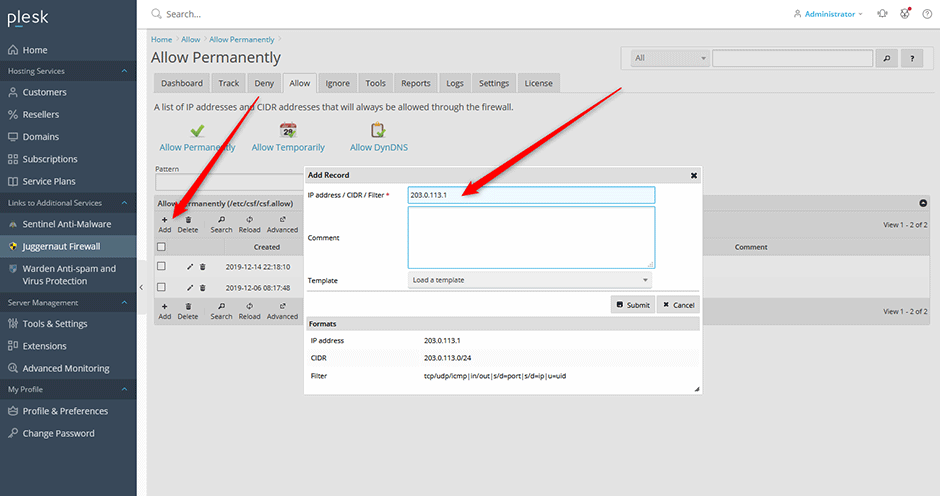
- Navigate to Juggernaut Firewall > Allow > Allow Permanently.
- Click the Add button to enter your IP address, CIDR notation, or advanced filter criteria.
Allow a Hostname (DynDNS)
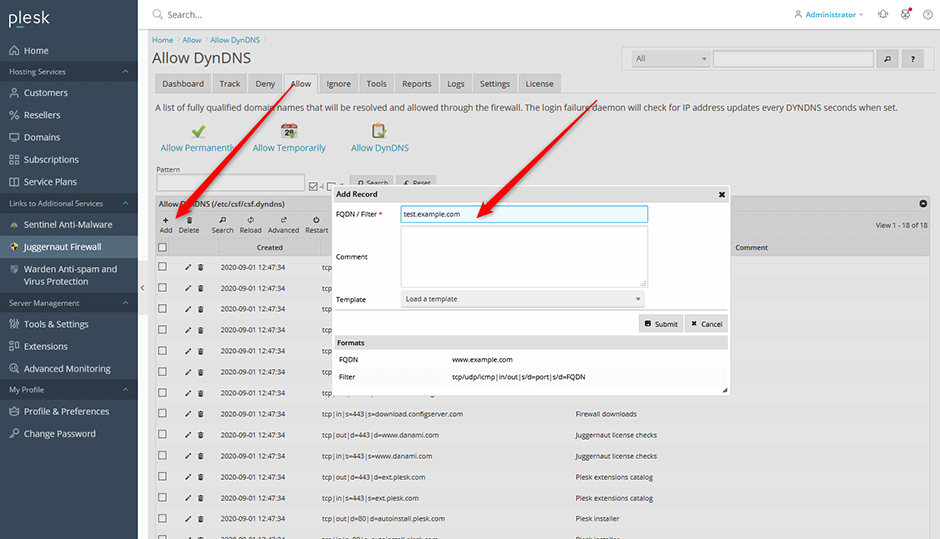
- Navigate to Juggernaut Firewall > Allow > Allow DynDNS.
- Click the Add button and enter your fully qualified domain name.
- Click the Submit button to save the configuration.
- Click the Restart button to restart the login failure daemon and apply changes.
Configure Outbound FTP Backup Access
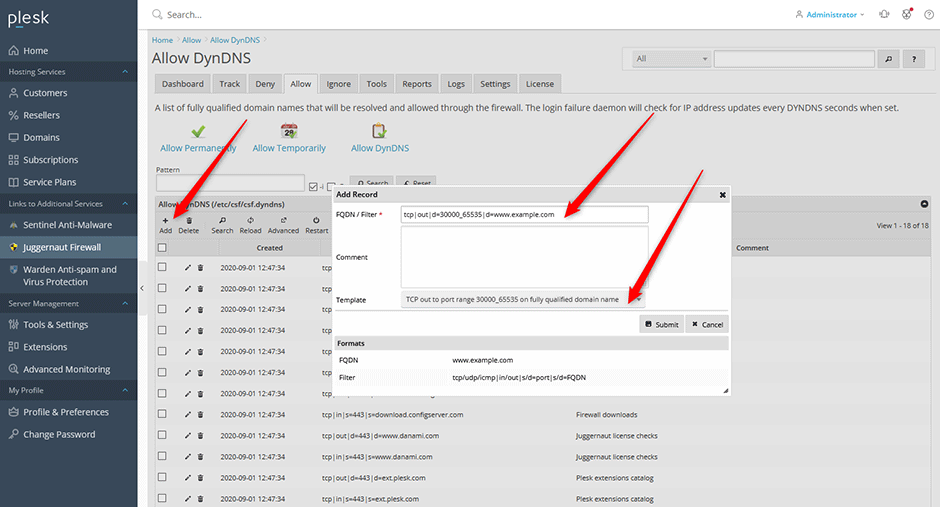
- Navigate to Juggernaut Firewall > Allow > Allow DynDNS.
- Click the Add button to create a new rule for outbound connectivity to your remote FTP backup server.
- Select the TCP out port range template and replace
www.example.comwith the actual hostname of your remote FTP backup server. - Click the Submit button to save the configuration.
- Click the Restart button to restart the login failure daemon and apply changes.
Exclude an IP Address from Login Failure Blocking
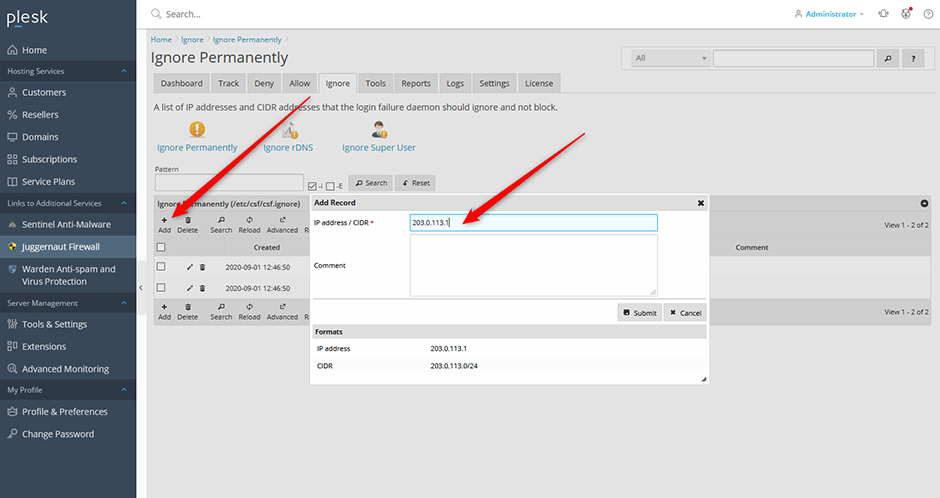
- Navigate to Juggernaut Firewall > Ignore > Ignore Permanently.
- Click the Add button to enter your IP address, CIDR notation, or advanced filter criteria.
Note: The login failure daemon will display a warning if it cannot start while the firewall is operating in "testing mode".
Exclude a Dynamic IP Address via DynDNS
- Register for a free dynamic DNS service (most home routers support this natively). Example: http://www.noip.com/remote-access.
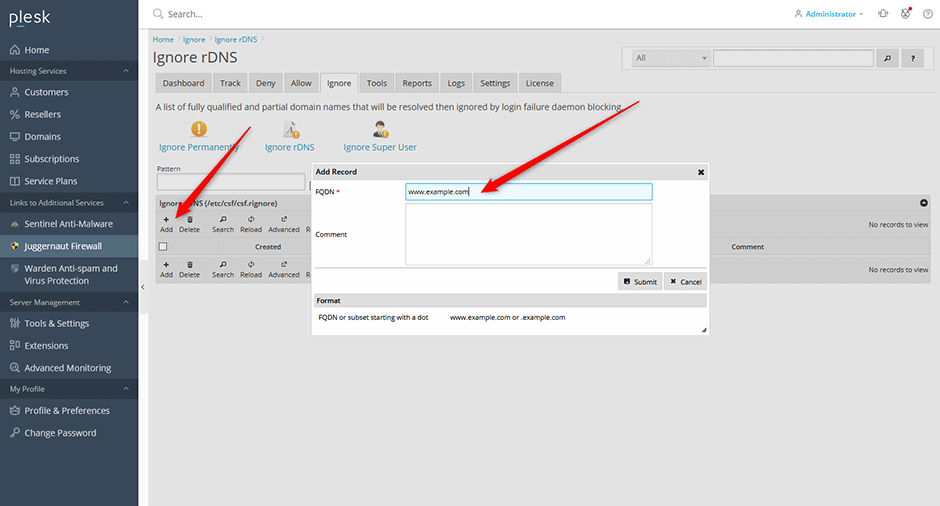
- Navigate to Juggernaut Firewall > Settings > Ignore rDNS.
- Click the Add button and enter your fully qualified domain name.
- Click the Submit button to save the configuration.
- Click the Restart button to restart the login failure daemon and apply changes.
Troubleshooting & Common Issues
- Daemon Startup Warning: If the login failure daemon fails to start, verify that Juggernaut Firewall is not configured in "testing mode". Switch to production mode if necessary.
- Changes Not Applying: Always click the Restart button after modifying allow or ignore rules. The login failure daemon requires a manual restart to reload updated configurations.
- DNS Resolution Failures: Ensure all hostnames and DynDNS records resolve correctly before applying firewall rules. Invalid fully qualified domain names may prevent the rule from activating.
