
Overview
If the Warden Anti-spam and Virus Protection installation encounters errors, missing components, or permission issues, re-running the product installer will automatically restore required packages, correct file permissions, and repair the configuration.
Repair via Plesk Interface
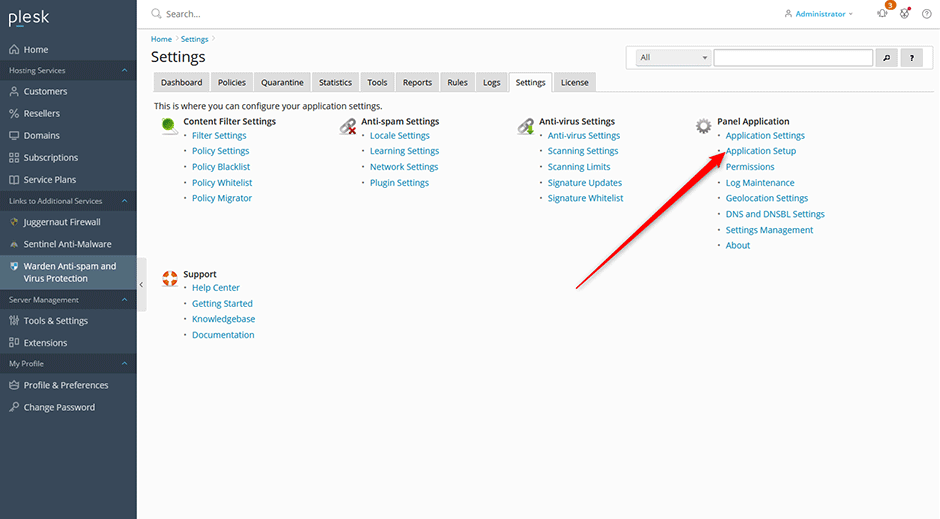
- Navigate to Warden -> Settings -> Application setup.
- Follow the on-screen prompts in the application setup wizard to complete the repair process.
Monitor Installation Logs
To track the progress and identify errors during the repair process, monitor the Plesk panel log in real-time:
tail -f /var/log/plesk/panel.logRepair via Command Line
If the graphical setup wizard does not resolve the issue, execute the installer script manually from the terminal. Select the command corresponding to your operating system:
AlmaLinux/CloudLinux/RHEL
/usr/local/psa/admin/bin/modules/warden/install.shDebian/Ubuntu
/opt/psa/admin/bin/modules/warden/install.shTroubleshooting
- If the installer fails, review the output in /var/log/plesk/panel.log for specific error codes or dependency conflicts.
- Ensure you have root privileges before executing command-line repair scripts.
- Verify that your system meets the minimum requirements for Warden Anti-spam and Virus Protection before re-running the installer.
